Choosing a model
Choose models in the workspace's Model marketplace: narrow the range with the filters on the left, open the model details to compare each provider's status, price and billing unit, then copy the model ID into the request's model. Only models under Workspace models can be called with this workspace's API keys; when the model you need is not there, the current Account Owner or a workspace Admin enables it, and Account Members can click Request access on the details page.
Finding a model in the model marketplace
After entering the workspace, click Model marketplace in the left menu. The page splits models into three parts:
| Section | Meaning | Callable with this workspace's API keys |
|---|---|---|
| Workspace models | At least one source is enabled in this workspace | Yes |
| Available N | A usable source exists, but it is disabled in this workspace | Only after it is enabled |
| Needs connection N | This workspace has no usable source; connect one through BYOK first | Only after it is connected |
- A source is one provider channel serving the model. It can be a channel provided by the platform or a channel you connected with BYOK. Sections are split by source: when one provider of a model is enabled and another is not, the model appears under both Workspace models and Available, and each card lists only that section's providers.
- Models newly listed by the platform are enabled in workspaces by default; models that were disabled manually stay disabled. Once a BYOK configuration takes effect, its models are enabled by default as well.
- The search box matches model name, model ID, author and provider name. The Filters panel on the left has four groups, Model authors, Input modalities, Output modalities and Sources, each allowing several choices; All means no restriction. Under Sources, Third-party means channels provided by the platform, and BYOK means channels this workspace connected with its own keys. Click Reset to clear all filters and the search term.
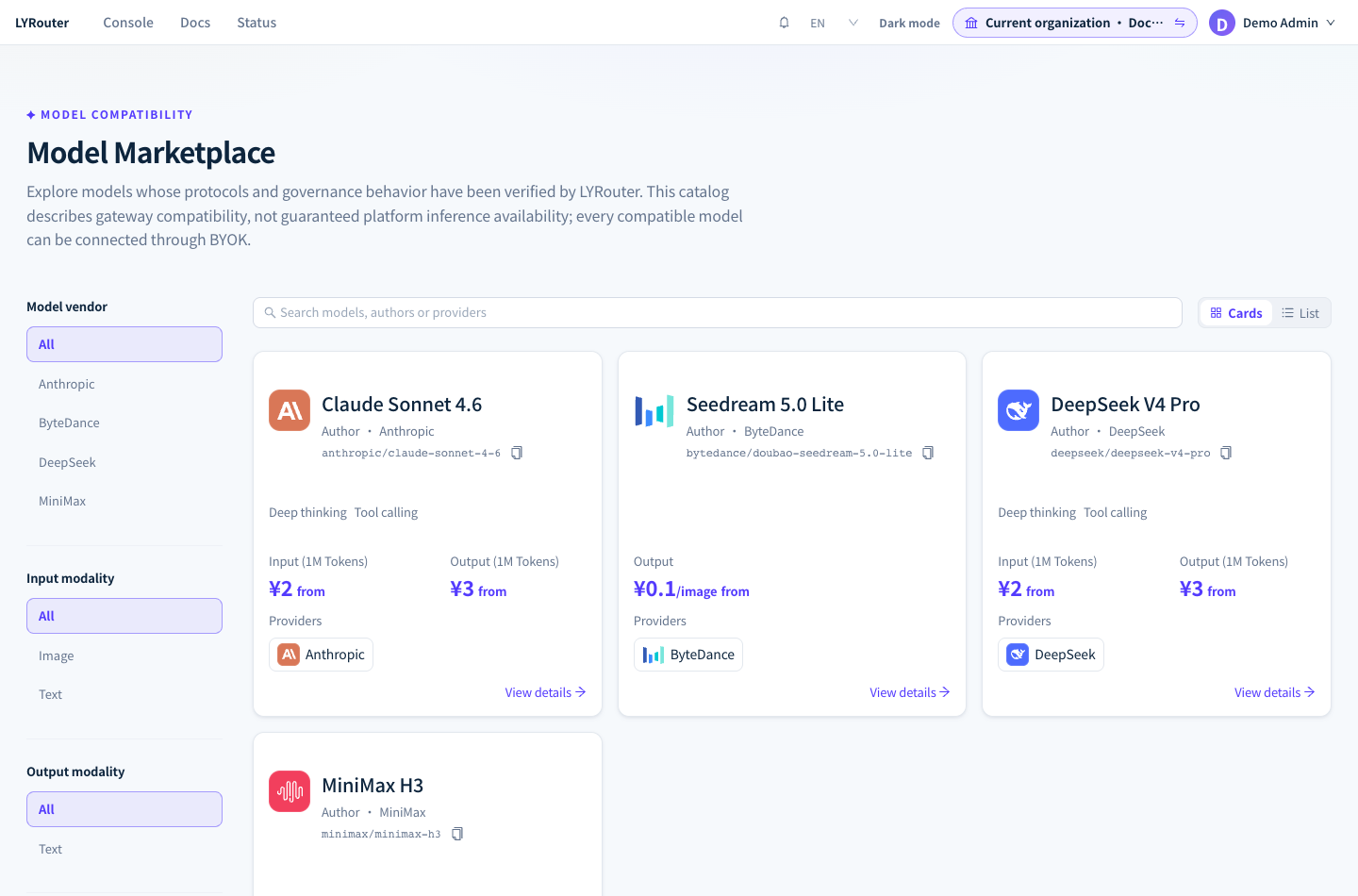
Figure 1: The model marketplace filters by model author, input modality and output modality on the left; cards show capability tags, starting prices, providers and a copyable model ID. Demonstration data; click the image for full size.
Cards are for a first pass: they show at most two capability tags (such as Deep Thinking and Tools); the Input and Output prices marked "from" are the lowest starting unit prices among the section's providers, and the official price is shown when no provider has a quote; a "New" badge marks a newly listed model. The model details hold the complete prices.
Comparing providers in the model details
Click a card or View details to open the model details. The header shows the model name, author, a copyable model ID and Available or Unavailable: as long as one source is enabled and you are allowed to call it, it shows Available. The Providers & pricing tab lists each provider:
| Content | How to read it |
|---|---|
| Status | Available: you can call it. Disabled: not enabled in this workspace. Member access restricted: enabled, but a guardrail model policy restricts you. BYOK only: the same channel has Only use this BYOK turned on, so the platform source does not take part in calls. Provider service unavailable: the source cannot be used right now |
| Source tag | When a provider has several sources, they are labeled Platform price (tag API · channel name) and BYOK reference price (tag BYOK · channel name) |
| Shield icon | Hover to see whether the provider uses prompts for model training: it does not, it may, or it has not disclosed |
| Price table | The header states the pricing method, such as Fixed rate, Token-length pricing or Time-based pricing; each column is the unit price of one billing item |
| Official reference price | The model vendor's published pricing, for comparison only |
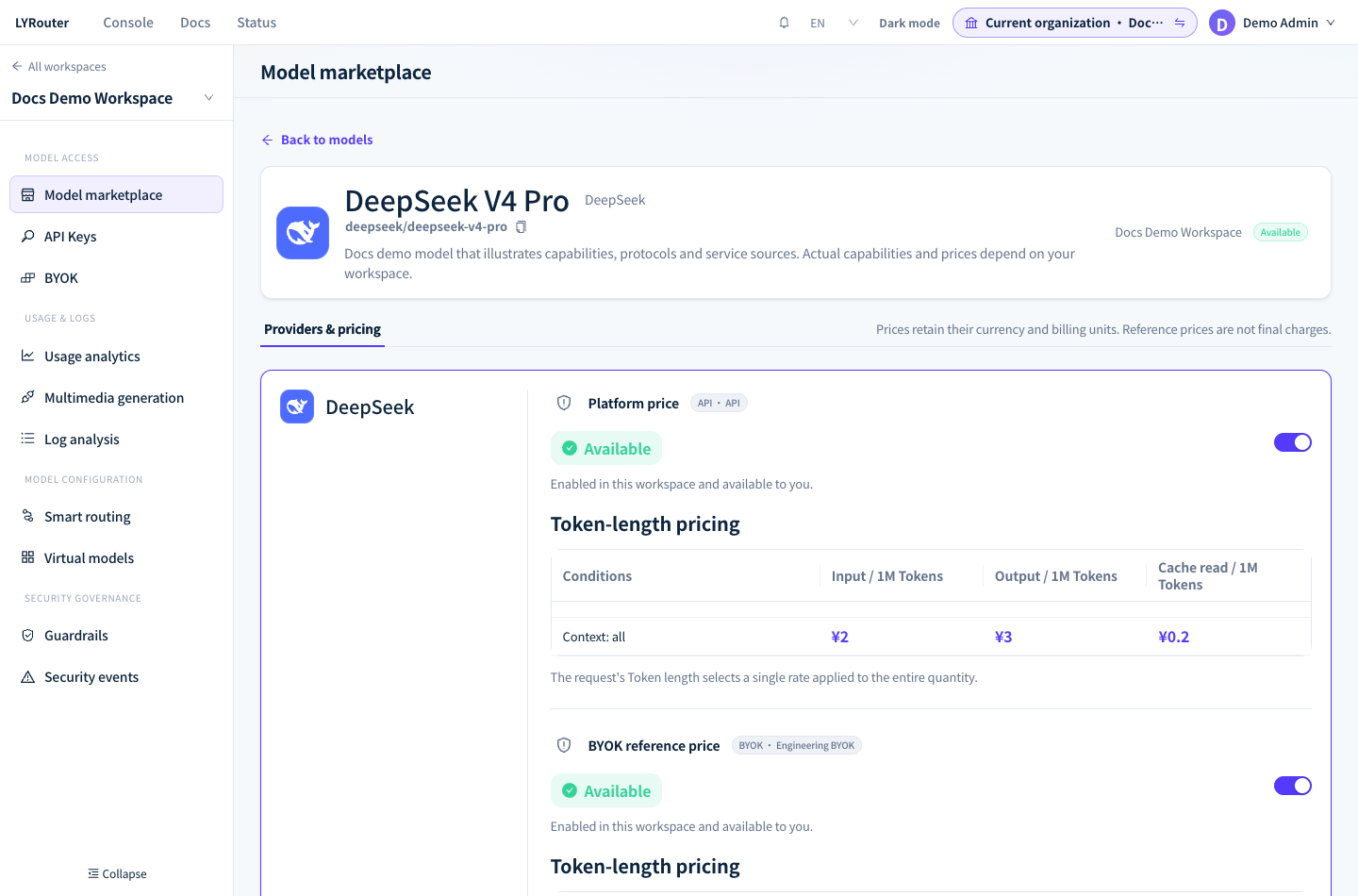
Figure 2: Providers & pricing in the model details lists each source's status, switch and price table, keeping the original currency and billing unit. Demonstration data; click the image for full size.
Check the billing unit when comparing prices
- Token billing items: the price table's Input, Input (cache hit), Output and Explicit cache creation correspond to Input (cache miss), Input (cache hit), Output and Explicit cache write in the logs, priced per million tokens. Input that hits the cache is charged at the Input (cache hit) price and is not charged again at the Input price.
- Other billing units: image, video and audio models are billed per image, second, minute, 10K characters, request and so on, with the unit in the column name or after the price. Unit prices in different units cannot be compared directly; estimate the total for a typical task instead, for example the average input and output tokens per request times the unit prices, or the number of images times the price per image.
- Markers: "—" means no quote yet, not free; "Pricing not published" means the source has no price yet; "First N … free per request" is a free allowance per request; when a price is struck through, the discounted price is next to it. Subscription BYOK sources show "Subscription access is billed by the provider's plan, not per Token."
- Currency: prices keep the provider's original currency (
¥or$), and actual charges are settled in Credits; see Billing and Credits and Estimating costs and cache pricing.
The model details do not list the context length. When you need it, call GET /v1/models with an API key; when the model catalog has the information, the entry includes context_length and max_output_tokens.
Copy the model ID and call it
Click the copy button next to the model ID on the card or in the details header, and put it into model unchanged. A model ID looks like deepseek/deepseek-v4-flash; the part before the slash is the model vendor, not the provider. A model served by several providers still has a single model ID, and the gateway chooses which channel to use; see Channels and routing. Setting the environment variables is covered in Your first model call:
curl "$LYROUTER_BASE_URL/v1/chat/completions" \
  -H "Authorization: Bearer $LYROUTER_API_KEY" \
  -H "Content-Type: application/json" \
  -d '{"model":"deepseek/deepseek-v4-flash","messages":[{"role":"user","content":"Hello"}]}'
Whether the protocol, input types and params apply is covered in Capabilities and compatibility.
Enabling and disabling models
The holder of a personal edition account, and in team and enterprise editions the current Account Owner and workspace Admins, can enable or disable a whole model with the switch at the top right of its card, or switch each source separately in the model details.
- When a switch cannot be clicked, the model has no source that can be switched right now: the source is unavailable, or its channel has Only use this BYOK turned on.
- When disabling would leave the model with no enabled source in this workspace, a "Disable the last service source?" confirmation appears first; once you confirm, this workspace's API keys can no longer call it.
- When two people change the same model at once, the one who saves later sees "The service changed and the page was refreshed"; redo the change based on the refreshed state.
- Enabling and disabling affect only the current workspace and reach the gateway once saved; you do not need to change API keys.
- Models under Needs connection have no switch. The Owner clicks Connect BYOK on the details page, which opens the BYOK configuration with the model preselected; see Connect a provider.
Members requesting access
Account Members do not see the switches, but they can request access in the model details:
- When the model has no usable source in this workspace, the header shows Request access; when a provider is Disabled or Member access restricted, that provider's row shows Request access to this provider.
- The request is sent as an in-app message to the current Account Owner and appears in their Message center; after sending, the button changes to "Owner notified". Requesting the same model or provider again within 24 hours shows "The owner already received this notification".
- When the status is Member access restricted, the model is already enabled, and what needs adjusting is the guardrail model policy; see Model access.
Verifying your choice
Call the candidate models with real tasks, check Model (actual), Provider, status and latency in the request logs, then compare tokens and cost by model over the same period in Usage attribution and analytics. When you need to change versions after going live, see Model versions and retirement.