Service status
The Service Status page publicly shows the results of the gateway's active probes against the upstream lines of each model: each line's status, TTFT (time to first token), throughput, success rate and an hourly record of the last 24 hours. Click Status in the top bar to open it; no sign-in is needed. It reflects whether the platform's lines themselves are available. The permissions, balance and quotas of a particular API key, and your BYOK credentials, are outside the probes' scope. If a line is healthy but your request fails, troubleshoot by the error message in the response.
What the page shows
- Summary: the top of the page shows "All lines operational" or "Some lines degraded", the total number of lines and how many are in each status; when there is no probe data yet, it shows "No monitoring data".
- Freshness: "Last probe:" is followed by the time of the most recent probe round, then a note on how often this page syncs results and how often the probe job runs a round. The probe interval is adjusted by the platform, so go by the note on the page. The page refreshes automatically, and you can also click Refresh.
- Model cards: each card's title is a model ID, and "N/M lines healthy" on the right counts that model's lines. Each row in a card is one upstream line, identified by the provider's name, and shows the status, TTFT, throughput, success rate, the 24-hour grid and the update time in that order; hover over the update time to see the exact probe time.
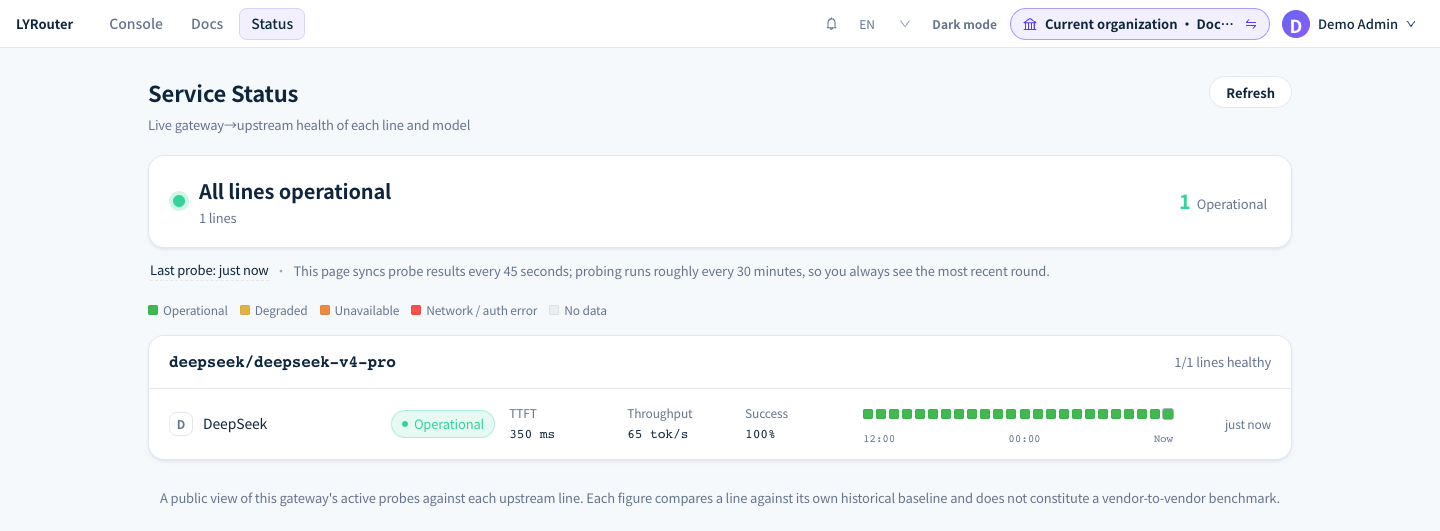
Figure 1: The Service Status page lists each provider line by model, with its status, TTFT, throughput, success rate and 24-hour grid. Demonstration data; click the image for full size.
Line status
Hover over a status label to see the basis for it:
| Status | Color | Meaning |
|---|---|---|
| Operational | Green | In the most recent probe, the line was reachable, authentication passed and generation worked, with latency and success rate within the line's own normal range |
| Degraded | Yellow | The line is still usable but clearly worse than its own baseline: the short-term average TTFT is more than about 1.8 times the long-term average, the success rate is below 98%, or decode throughput is below the baseline (which may also come from upstream rate limiting) |
| Unreachable | Red | DNS resolution, the TCP connection or the TLS handshake failed, so the request never reached the upstream |
| Unavailable | Red | The line was reachable, but the call did not succeed: the upstream returned an error, timed out or returned an empty response |
| Authentication failed | Red | The upstream rejected the platform's credential (HTTP 401/403), usually because the key is no longer valid, the account is in arrears or permissions changed |
| No data | Gray | There have been no valid probe samples recently, for example because probing has just started, the model is outside the probing scope, or several rounds in a row returned no data |
TTFT, throughput and success rate all come from probe requests. They are for comparing a line with its own historical baseline, not for comparing providers with each other.
24-hour grid
The grid has 24 cells, one per clock hour in your time zone, and the rightmost cell is the current hour (labeled "Now" on the axis). Each cell takes the color of the worst probe result in that hour:
| Color | Legend | Meaning |
|---|---|---|
| Green | Operational | Probes were normal in that hour |
| Yellow | Degraded | TTFT or decode throughput was clearly worse than the line's own baseline |
| Orange | Unavailable | The line was reachable, but the upstream returned an error, timed out or returned an empty response |
| Red | Network / auth error | The line was unreachable, or the upstream rejected the platform's credential |
| Gray | No data | No valid probe samples in that hour |
Hover over a cell to see that hour's time range, status, success rate, TTFT, throughput and Probe rounds, plus Error class when there was an error. A few special cases:
- In progress: the current hour has no probe samples yet, and the cell is shown with diagonal stripes. This is normal just after the top of the hour and does not mean the line is down.
- Generation stage shows Not reached: probes in that hour did not get as far as the generation stage (the line was unreachable or the upstream rejected the credential), so there is no latency or throughput data.
- Gray but with probe rounds: probes ran in that hour but produced no verdict, usually because the gateway had no usable credential for the line. This does not mean the upstream is down.
Probing scope
- The gateway periodically sends one minimal streaming generation request directly to each platform line, checking connectivity first and then whether generation succeeds. Probes do not go through any workspace's routing settings.
- Only chat models are probed; image, video, audio and similar models are not on the page. Channels you connect through BYOK are not probed either.
- On real calls, the gateway falls back between channels based on the result of each request: after one channel fails, it switches to another channel of the same model; see Retries and fallback.
Status is healthy but requests fail
Check in this order:
- Read the error message: for 401 and 403, see 401 / 403: authentication and access; for 429, see 429: rate limits and quotas; for a model you cannot call, 402 or 503, see Unavailable models; for 504 or interrupted streams, see Timeouts and interrupted streams.
- Check the logs: find the request in the request logs. The Status explanation column shows whether the error came from Gateway or Upstream; in the detail, check Model (actual) and Provider, then compare with the matching model and provider row on the status page.
- Check whether BYOK was used: if the request went through a BYOK channel, the status page does not cover it. Ask the Owner to test the connection again in BYOK and confirm the quota with the provider.
- Compare request characteristics: probes use very short requests. Long context, many tool definitions or long-running streaming output are more likely to trigger upstream timeouts and rate limits; use the timings and the upstream response in the logs to investigate.
FAQ
Will my calls be affected when a line shows a problem?
Answer: After that line fails, the gateway switches to another channel of the same model. If the model has only that one line, calls may fail; switch to another model, or let the fallback models of a virtual model cover it automatically.
What should I include when reporting a service problem?
Answer: Include the call time, model ID, API key name, the full error message and the Request ID from the top of the log detail; if the status page also shows a problem at the time, add the matching model and provider names. Responses do not carry a request ID, so copy it from the log detail. Do not send the API key itself or full authentication headers.