Budgets, quotas and rate limits
LYRouter has two kinds of usage limits. The Budget limits of an API key constrain only that key and are filled in by the key's creator or the current Account Owner in the key settings. Quota policies in guardrails are set by the current Account Owner per workspace, department, organization member or API key; they can be measured in Credits or millions of Tokens, reset monthly or daily, and give individual members exceptions. Once any limit is used up, later requests return 429 until reset_at has passed. Quotas only limit usage and are separate from the organization's Credits balance.
Key budgets and quota policies
| API key budget | Guardrail quota policy | |
|---|---|---|
| Where to set it | The Budget limits step when you create or edit a key on the API Keys page | The Quota tab of Guardrails |
| Who can set it | The key's creator (an Editor or Admin of that workspace) and the current Account Owner | The current Account Owner; available from the Team edition |
| What it limits | That one key | A workspace, department, organization member or API key |
| Measured in | Cost budget (¥) and Token budget (million tokens) | Credits or Token (entered in millions of Tokens) |
| Period | Monthly (resets at 00:00 on the 1st of each month) and Total (never resets); leave empty for no limit | Monthly (with a configurable reset day), Daily, Total |
| Sharing and exceptions | None | Shared, Per user, Per API key; members can be given exceptions |
| Rate limits | None | Optional requests per minute (RPM) and Tokens per minute (TPM) |
| When the limit is reached | Requests are rejected | Block rejects requests; Alert only notifies and does not block |
- All apply at once: key budgets, quota policies at every level and the BYOK channel's own allowance are independent of each other; when any one of them is used up, calls are rejected.
- Cost budget conversion: Cost budget (¥) is converted to Credits at the platform rate and enforced in Credits, so the metric in the limit error is
credits, andlimitandusedare in Credits as well. - Beijing time: monthly and daily resets are calculated in Beijing time.
Configuring a quota policy
On the Quota tab of Guardrails, the current Account Owner clicks Create Quota policy:
- Targets: choose Workspace, Department, Organization member or API key. For a workspace or department, also choose a Quota mode; see the next section.
- Policy rules:
- Metric: Credits is entered directly in Credits; Token is entered in millions of Tokens, so
10means 10 million Tokens, and the Actual Token count is shown below. - Limit: a positive integer.
- Period: Monthly resets at 00:00 (Asia/Shanghai) on the Reset day, which can be 1–28 and defaults to 1; Daily resets at 00:00 every day; Total never resets automatically.
- Warning threshold: 80% by default. When usage reaches this share, one reminder is sent: for Per user and Per API key quotas both the member and the administrators are reminded, and for a Shared quota only the administrators are; enter 0 to turn it off. The maximum is 99.
- Member exceptions: see Quota exceptions below.
- Rate limits (optional): RPM and TPM are counted per minute, independent of the main limit and unaffected by exceptions.
- Enforcement action: Block or Alert.
- Metric: Credits is entered directly in Credits; Token is entered in millions of Tokens, so
- Activation: take effect immediately or on a schedule, with an optional expiry time.
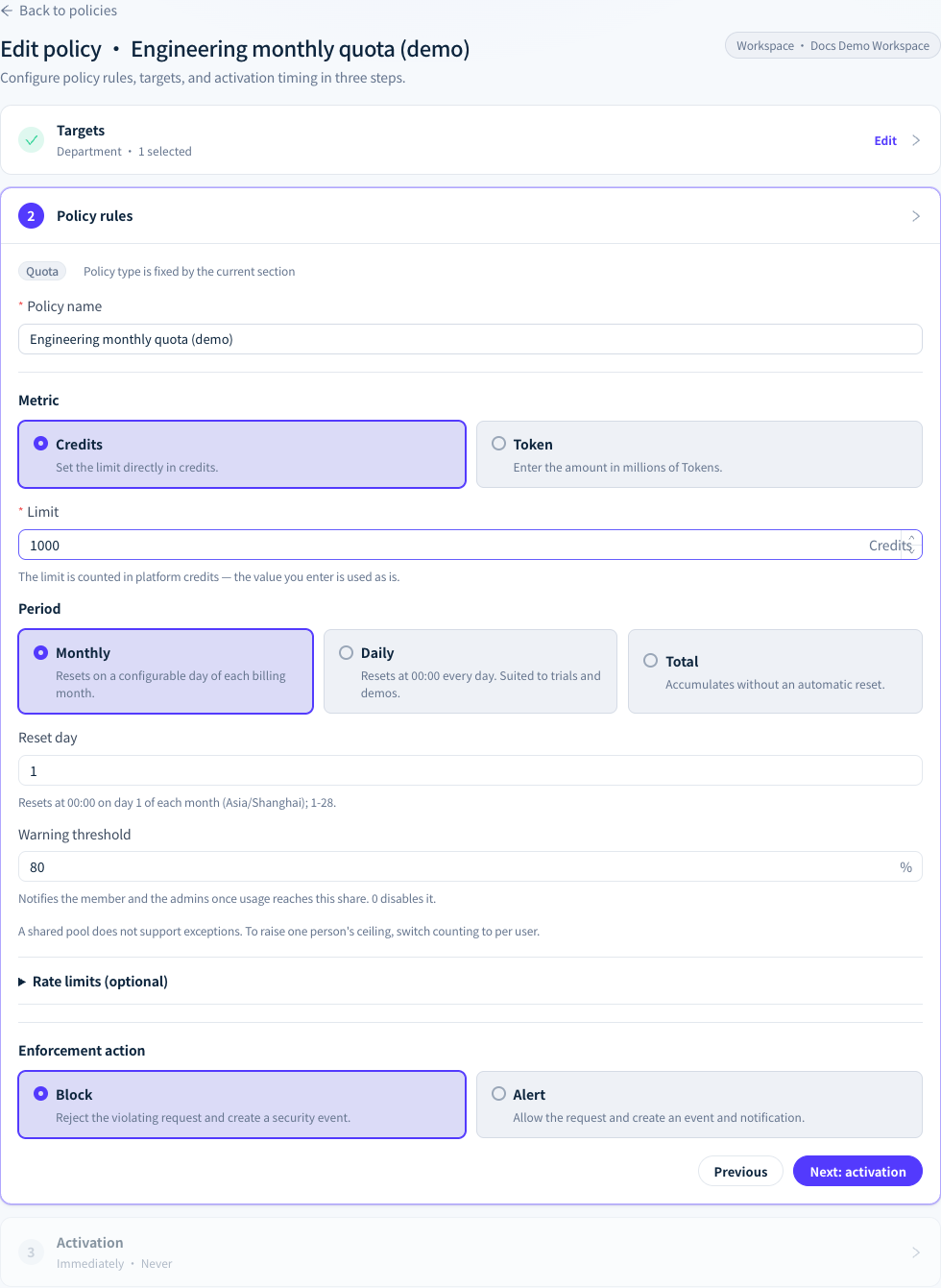
Figure 1: Quota policy rules: metric, limit, period, reset day, warning threshold and enforcement action. Demonstration data; click the image for full size.
How usage is counted
| Quota mode | Meaning | Example: a limit of 5000 Credits, Monthly |
|---|---|---|
| Shared | All calls in scope share one allowance | 5000 for the whole workspace combined; once it is used up, everyone in scope is rejected |
| Per user | Each member in scope gets their own allowance | 5000 per member per month |
| Per API key | Each key in scope gets its own allowance | 5000 per key per month |
- When the target is an Organization member, the usage of all keys that member created is added together; when it is an API key, only that key's own usage counts.
- When the target is a Department, only keys whose creator's primary department is exactly that department count; sub-departments are not included.
- For a policy in Shared mode, the amount used is shown under Shared pool usage in the policy details; when the counter temporarily cannot be read, it shows Unavailable.
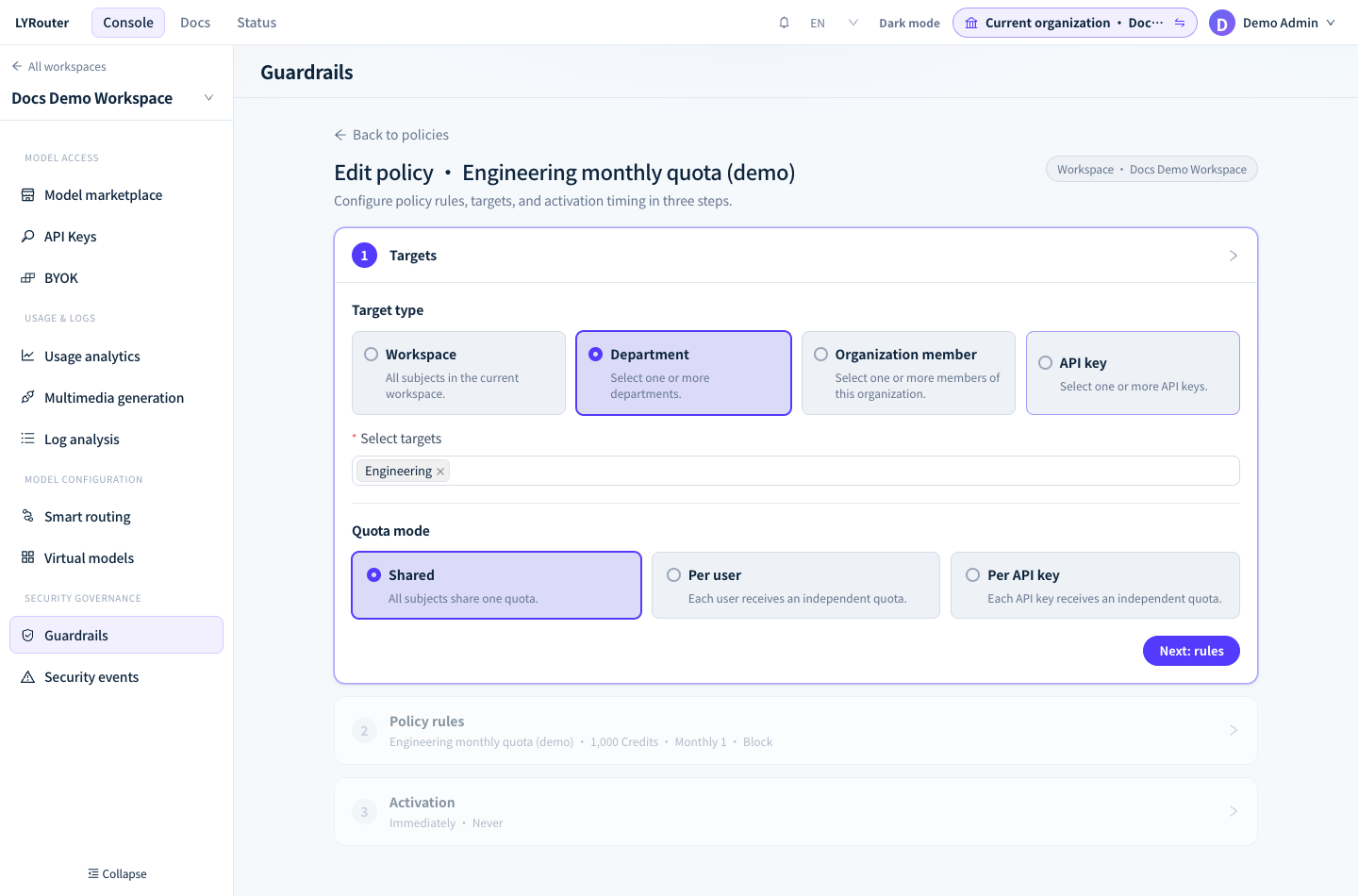
Figure 2: Choose Department as the target, then pick one of the three quota modes: Shared, Per user or Per API key. Demonstration data; click the image for full size.
Quota exceptions
A quota exception gives a few members an allowance different from the default, either higher or lower. Exceptions appear only in policies whose target is Workspace or Department and whose quota mode is Per user. Shared is a single total and does not support exceptions; to give one person more room, switch to Per user.
- Adding: under Member exceptions, click Add member or Add by department and enter an Allowance for each person. Members not listed follow the default allowance.
- Valid until defaults to End of this cycle: the exception expires together with the quota reset, and usage is zeroed at the same moment, so nobody is suddenly rejected because of it. You can also choose No expiry, or Specific date to set a future expiry time. A Total period has no cycle boundary, so unless you set a Specific date, the exception stays in effect until you delete it.
- Adding by department is a one-time snapshot: sub-departments are included by default, and each current member of the selected departments is added as an exception. People who join the department later do not get the exception automatically; people who move out keep their exception and are marked as moved ("Moved out of" followed by the department name), and you can click Re-sync this department. When the target is a department, only members whose primary department is exactly that department are added.
- At most 80: one policy holds at most 80 exceptions, expired ones included. Expired exceptions are collapsed at the bottom of the list, where you can Extend them to the next cycle boundary or delete them.
- Deleting or lowering takes effect immediately: the limit drops right away, but usage already counted this cycle is not reset. A member whose usage is above the new limit is rejected on their next request until the cycle resets; the console asks you to confirm before you delete or lower an exception.
Changing the period resets usage
After you change the Period or the Reset day, usage counted in the current cycle is zeroed and everyone starts again from 0; the console asks you to confirm before saving. Changing only the Limit or exception allowances does not reset usage.
When a limit is used up
When a blocking quota or a key budget is used up, requests return 429:
| Field | Meaning |
|---|---|
error.message |
rate limit exceeded on <subject> <metric>/<window>, for example rate limit exceeded on ws credits/month |
limit, used |
The limit and the amount used |
reset_at |
When the limit is restored; a Total period, for key budgets and quota policies alike, has no reset time |
policy_code, policy_name |
Present only when a guardrail quota policy fired; use them to tell quota policies from key budgets |
- Usage is counted after a request completes, so the request that crosses the limit completes normally and the next one is rejected.
- A quota with the Alert action does not block when it is reached; it only records a security event and sends a notification. Other blocking limits that apply at the same time still take effect.
- The possible values of subject, metric and window, and how to retry, are covered in 429: rate limits and quotas. To raise a limit, ask the key's creator or the Owner to change a key budget, and ask the Owner to raise a quota policy's limit or add an exception.
My quota for members
Members see the quotas that apply to them on the My quota card of the console Overview page, one card for each workspace they can access:
- A Per user quota shows the amount used, the limit, "N left" and the reset time. The quota with the lowest remaining share comes first, and when there are several you can click Show all.
- A Shared quota shows Shared and "X credits shared across this workspace / This month", without personal usage. Once the workspace-wide allowance is used up, every call in scope is rejected.
- A member with an exception sees Custom allowance; when the exception expires at a different time from the reset, the card notes that the limit then falls back to the default allowance.
- With no applicable quota at all, the card shows No limit. Quotas attached to individual API keys and key budgets are not on the card, and quotas counted Per API key show only the limit, with Unavailable in place of the amount used.
- Programs can also read response headers such as
x-aigw-quota-<metric>-remainingto get the remaining amount; see 429: rate limits and quotas.
Quotas and balance
A quota is a usage cap; the balance is the organization's Credits balance. The two are checked separately. Even with quota left, an insufficient balance still returns 402 insufficient credit balance; with enough balance, a used-up quota still returns 429. Topping up does not raise quotas, and raising a quota does not add balance; see Billing and Credits.
FAQ
My quota shows No limit, so why do I get 429?
Answer: Look at the subject in the error message. apikey means the key's own budget, or a quota attached to the key, is used up; these are not shown on the card, so ask the key's creator to check the budget on the API Keys page. api_key_circuit_open is the error-rate circuit breaker and has nothing to do with quotas; see 429: rate limits and quotas.
How soon does a raised limit take effect?
Answer: It reaches the gateway within a few seconds of saving. Raising the limit does not reset usage: once usage is below the new limit, calls go through again, and you do not need to change API keys.