Model mappings and sources
Clients always call with a system model ID (for example deepseek/deepseek-v4-pro), and the model mapping decides which upstream model name the gateway sends to the provider in its place. For built-in providers the platform maintains the mapping, and you only select models in the Models & cost step of BYOK. For a custom provider you first read the upstream model list, then map each upstream model to a system model. After you save, these models gain a BYOK source in the model marketplace.
System model IDs and upstream model names
| Name | Example | Where it is used |
|---|---|---|
| System model ID | deepseek/deepseek-v4-pro |
model in requests, the model marketplace, request logs, virtual models, guardrails |
| Upstream model name | deepseek-v4-pro, or a Volcano Engine Ark ep-* endpoint ID |
Only in the requests the gateway sends to the provider |
model in a request must be a system model ID. An upstream model name written directly (for example ep-*) is treated as a model that is not enabled and returns 403 Model is not available in the model plaza; if the workspace has a default model, the default model answers instead. Look up available system model IDs with GET /v1/models.
Built-in providers: select models
The Models & cost table lists the models the platform has published for the provider's channel:
- The Built-in model column shows the system model ID and the model name, marked "Built in; no model mapping required".
- Select the models you want to use; with Token-based billing you can set a Channel price discount (%) for each model.
- Models marked "Unpublished" were selected earlier but are no longer published by the platform; you can clear them.
- When the table shows "No catalog model for this provider matches this release scope", the channel has no models you can connect for now.
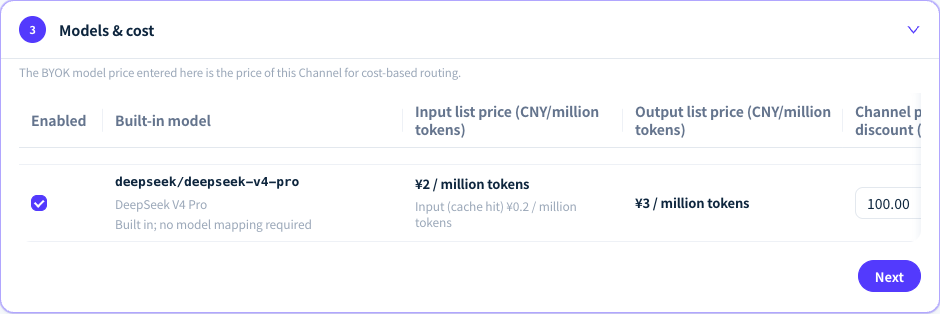
Figure 1: Built-in models show the system model ID, list prices and the Channel discount, with no manual mapping needed. Demonstration data; click the image for full size.
Custom providers: map upstream models
- Fill in at least one API key in the Credentials step.
- In Models & cost, click Fetch provider models. The console reads the upstream model list with the first credential that has a key filled in (or with a saved credential if none does) and, on success, shows "Loaded N upstream models". When you create a custom provider whose Base URL lacks
/v1and the list can only be read once/v1is added, the console automatically changes the Base URL to the completed address. - Choose the models to connect in Upstream provider model; you can only choose from the list that was read.
- Choose a Platform unified model for each upstream model. Matching names are preselected, and
.and-in version numbers count as the same, soclaude-opus-4-6matchesanthropic/claude-opus-4.6. The dropdown lists only models in the platform model catalog and does not accept new names. - With Token-based billing, each row shows the system model's Operations list price, and you can set a Channel price discount (%).
Mapping rules
- Text chat models only: the system model must be a chat model with text output; it can accept image input. Image, video, audio and embedding models cannot be connected through BYOK, and saving shows
model is unavailable for text chat completions. - One to one: within one BYOK, each system model can be mapped only once and each upstream model name can be used only once. Duplicates show
invalid BYOK billing configuration: duplicate modelorinvalid BYOK billing configuration: duplicate upstream model name. - Token-based billing needs a price: with Token-based billing, the mapped system model must have a price published by the platform; otherwise saving shows
the selected model has no active operations pricing strategy: <model>. The discount is applied to this price. - Several sources side by side: one system model can be served by the platform source and by several BYOKs at the same time, and the gateway chooses among them as described in Channels and routing.
Check sources in the model marketplace
- After you save, mapped models automatically gain a BYOK source, are enabled by default and appear under Workspace models in the model marketplace. Choose BYOK under Sources on the left to see only BYOK sources.
- Providers & pricing on the model detail page lists each source and its status. After you turn off a BYOK source, the gateway no longer calls the model through it.
- Models on the Needs connection tab have no usable source in this workspace yet. Clicking Connect BYOK on the model detail page opens the editor for a new BYOK.
- When you clear or delete a mapping in BYOK, the corresponding BYOK source is removed.
Verify the mapping
Call the system model ID with an API key from the workspace, then open the record in the request logs: Model (actual) shows the system model ID, and Provider has a BYOK tag. To check the model name actually sent to the provider, look at the upstream request under Raw packets in the log details; its model is the upstream model name.
FAQ
Clicking Fetch provider models shows "Failed to fetch provider models". What should I do?
Answer: Check the Base URL, the Interface and the API key in turn. Addresses for OpenAI-compatible, OpenAI Responses API and Anthropic native usually all end with /v1; the gateway appends /messages to a native Anthropic address, so without /v1 the connection test may pass while real calls return 404. The provider must offer a model list endpoint, because the console can only choose upstream models from the list it reads.
The system model I want is not in the dropdown. What should I do?
Answer: The dropdown lists only models in the platform model catalog. A model that is not in the catalog cannot be connected through BYOK for now; contact support with the provider and model name. Do not use an upstream model name as a system model ID.
After a call, Model (actual) is not the model I mapped. Why?
Answer: Every BYOK credential for this model failed, so the gateway fell back to another channel or the default model under the fallback rules; see Retries and fallback. Check the result of each attempt in Route trace in the log details. To use only this BYOK, turn on Only use this BYOK in its Usage step.