Model access
Two layers of settings decide which models an API key can call. The models enabled in the Model marketplace of the key's workspace are the baseline; Model access policies in guardrails then narrow it by department, organization member or API key, and can only remove models, never add them. When a model is not enabled in the workspace, calls return 403 model_not_available; when a model policy blocks it, they return 403 guardrail_model.
Two layers
| Layer | Where to set it | Who sets it | Effect |
|---|---|---|---|
| Enabling in the model marketplace | The workspace's Model marketplace: the switch on a model card, or the switch for each provider on the model's detail page | The current Account Owner and the workspace's Admins (in the Personal edition, the account holder) | Decides which models, and through which providers, every API key in the workspace can call |
| Model access policy | Model access in Guardrails | The current Account Owner; available from the Team edition | Narrows access further for departments, organization members or API keys |
- Without any model policy, every key in the workspace can call the models enabled in the model marketplace.
- A model policy cannot open up a model that is not enabled in the model marketplace: even if the allow list names it, calls still return
model_not_available. - Enabling, disabling and policy changes reach the gateway within a few seconds of saving; you do not need to change API keys.
- The Guardrails page is shown only to the Owner. When an Account Member runs into a permission problem, they should send the model ID, the API key's name and the full error message to the Owner to check.
Enabling models in the model marketplace
The model marketplace has three sections: Workspace models are models already enabled in this workspace and ready to call; Available lists models that have a usable source but are not enabled yet; Needs connection lists models without any usable source, which first need to be connected through BYOK.
- Per-model switch: the switch on a card applies to the whole model. Turning it on enables every source that can be enabled; turning it off disables every enabled source.
- Per-provider switch: to enable or disable just one provider, open Providers & pricing on the model's detail page and use the switch in that provider's row.
- Disabling the last source: the console first asks "Disable the last service source?"; after you confirm, API keys in this workspace can no longer call the model.
- Scope: enabling and disabling affect only the current workspace, not other workspaces.
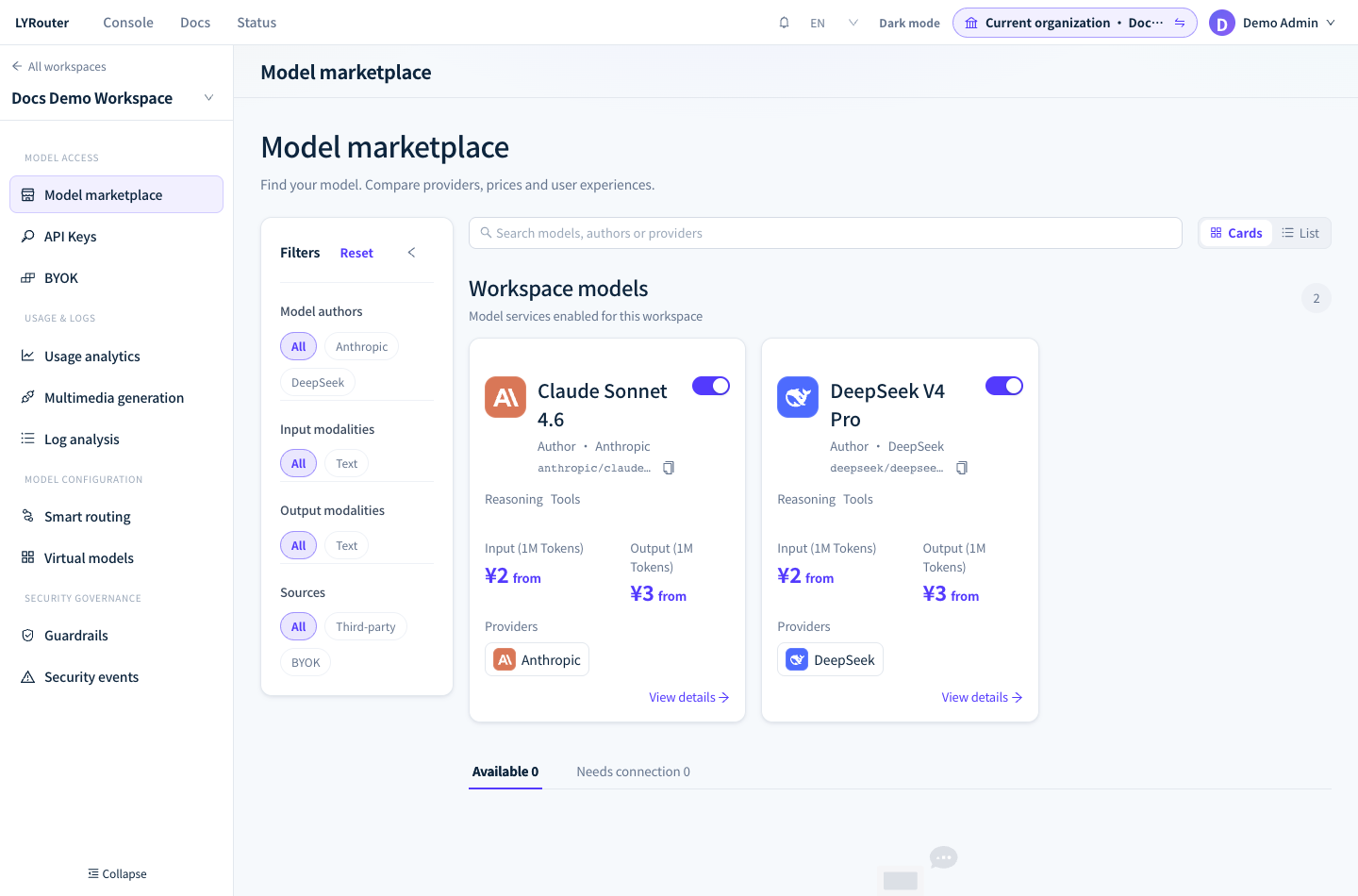
Figure 1: Workspace models in the model marketplace lists the models enabled in this workspace; administrators enable or disable them with the switch at the top right of each card. Demonstration data; click the image for full size.
Members requesting access
Members whose workspace role is Viewer or Editor do not see the switches, but they can send the Owner a request from the model marketplace or the model detail page:
| Button | Where it appears |
|---|---|
| Request access | On the model card or at the top of the detail page, when the model has no usable source in this workspace |
| Request access to this provider | In a provider's row on the detail page, when that provider's status is Disabled or Member access restricted |
- Clicking sends an in-app notification to the current Account Owner, and the button changes to Owner notified. If the same member requests the same model or provider again within 24 hours, no new notification is sent and the page shows "The owner already received this notification".
- A request only sends a notification; it creates no approval flow and changes no permissions. The Owner or a workspace Admin needs to enable the model or provider in the model marketplace; when the restriction comes from a model policy, the Owner adjusts it in Guardrails.
- The detail page status Member access restricted means the workspace has already enabled this provider and the restriction comes from a Model access policy, so it is Guardrails, not the model marketplace, that needs adjusting.
Narrowing access with Model access policies
The current Account Owner opens the Model access tab in Guardrails, clicks Create Model access policy and completes three steps:
- Targets: choose Department, Organization member or API key. These policies cannot target a whole workspace; to restrict the whole workspace, disable the model in the model marketplace instead.
- Policy rules: under List behavior, choose Allow list (only the listed models are allowed) or Deny list (the listed models are denied); pick specific models in Models allowed to call or Models denied from calling, or write one
*pattern per line in Model wildcards, for exampleqwen-*ordeepseek/*. The enforcement action is always Block. - Activation: choose whether the policy takes effect immediately or on a schedule, and whether to set an expiry time.
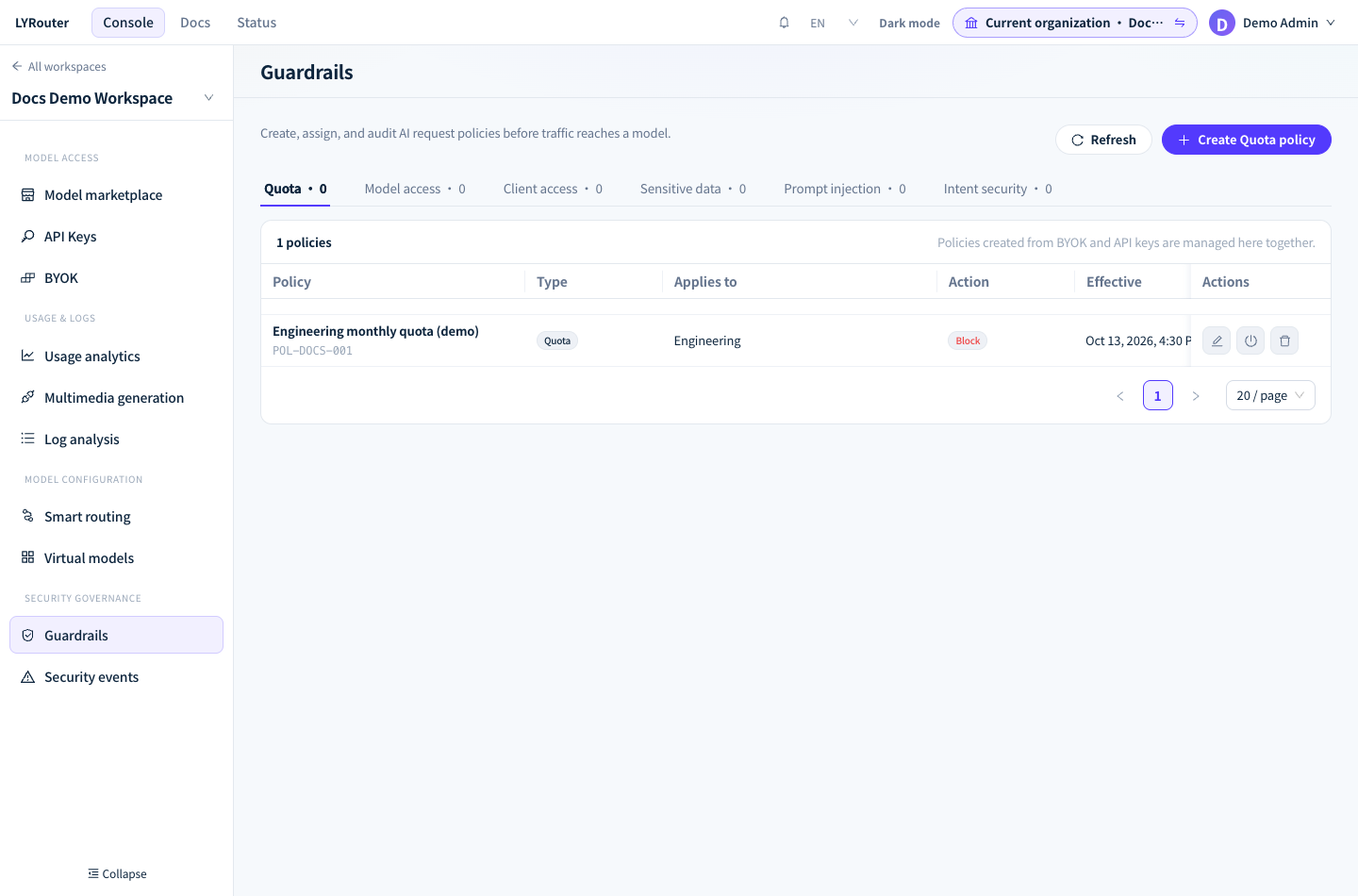
Figure 2: Guardrails has one tab per policy type; the Model access tab shows each policy's targets, action and status. Demonstration data; click the image for full size.
How multiple policies combine
| Situation | Result |
|---|---|
| Any applicable deny list matches | Denied |
| Several allow lists on the same target | Combined; the model only needs to appear in one of them |
| Allow lists on different targets (for example one on a department and one on a key) | The model must appear in the allow list of every one of those targets |
So an allow list on a key cannot loosen a department's or member's restriction. How targets match: Department covers keys whose creator's primary department is exactly that department, not sub-departments; Organization member covers every key the member created; API key covers only the selected keys.
What callers get
| Situation | Result |
|---|---|
| The model is enabled and no policy restricts it | The call succeeds |
| The model is not enabled in the workspace | 403 Model is not available in the model plaza, with error.code model_not_available. When the workspace has a Default Model, chat-style requests are answered by the default model instead; see Channels and routing |
| A model policy denies the model | 403 Request blocked by guardrail policy, with error.code guardrail_model; no fallback model is tried |
- Checked against the actual model: when you call through a virtual model or
lyrouter/auto, the gateway checks policies against the model ID that was finally selected. Putting@vmodel/...orlyrouter/autoin a model policy has no effect. GET /v1/modelslists per key: it returns the model IDs that are enabled in the workspace and allowed by this key's model policies, so different keys in the same workspace may get different lists.@vmodel/<name>andlyrouter/autoare always listed, and the actual model is checked at call time.- Marking in the logs: in the Status explanation column of the request logs, a block by a model policy shows as "Model access was denied". How to handle each kind of 403 is covered in 401 / 403: authentication and access.
Verifying access
Call GET /v1/models with a key created by the member in question and check that the list is what you expect. Then call one allowed model and one denied model, and confirm that the first succeeds and the second returns 403 guardrail_model. Setting the environment variables is covered in Your first model call:
curl "$LYROUTER_BASE_URL/v1/models" \
  -H "Authorization: Bearer $LYROUTER_API_KEY"
FAQ
The model is visible in the model marketplace, so why does my key get 403?
Answer: Check error.code first. model_not_available means the key's workspace has not enabled this model or provider: confirm that the model is under Workspace models and that the key belongs to this workspace. guardrail_model means a model policy denies this key: ask the Owner to check, under Model access in Guardrails, the policies that apply to the key, to its creator and to the creator's primary department.
Can I get around the restriction by changing the model name in my client?
Answer: No. The gateway only recognizes model IDs, and policies are checked against the model actually selected. Set model to the model ID copied from the model marketplace card, not to the display name.
How soon can a member use a model after requesting it?
Answer: A request only notifies the Owner. Once the model or provider is enabled in the model marketplace, or a model policy is adjusted and saved, the change takes effect within a few seconds; the member does not need a new API key and can simply call again.