Your first model call
Call LYRouter using an OpenAI-compatible client, then check the response and request log.
Prepare credentials
Use your personal account's default workspace, or an authorized shared workspace.
Create and save an API Key
Select API Keys in your workspace's left navigation to open the key list. Click Create API Key in the upper right and complete the configuration.
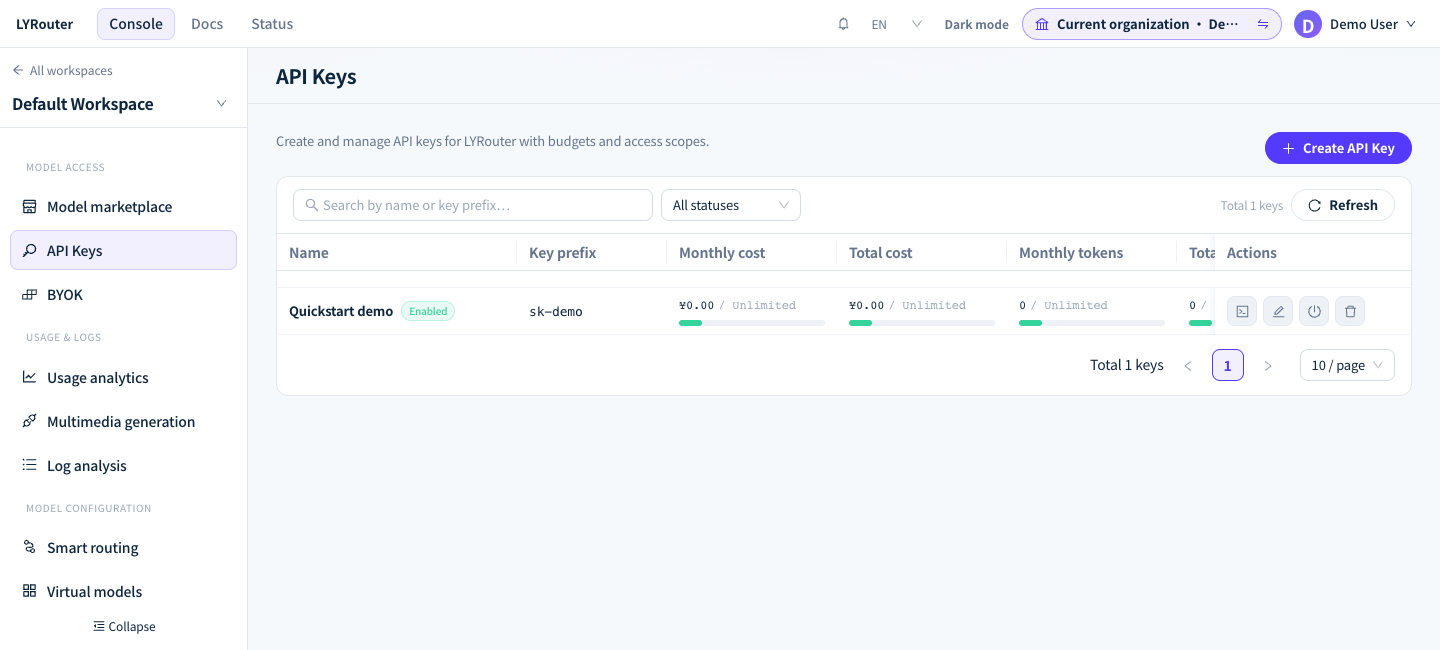
Figure 1: The API Keys page, its navigation entry, key list and creation button. This screenshot uses demonstration data; the list shows only key prefixes. Click the image to view the original.
Copy the full key from the creation confirmation dialog, save it securely, then confirm that you have saved it. The plaintext key is shown only once.
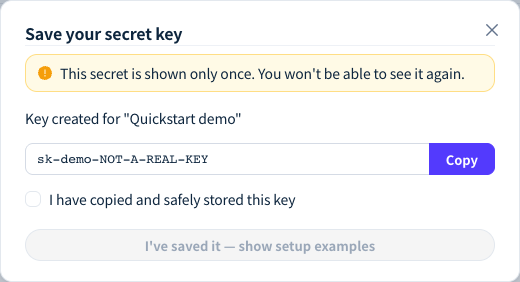
Figure 2: Copy and save your API Key after creation. sk-demo-NOT-A-REAL-KEY is a demonstration value and cannot authenticate requests. Click the image to view the original.
Choose a model and copy its identifier
Choose an enabled model with a valid service source in your workspace's model marketplace. Use the copy icon beside its system model identifier, then replace MODEL_ID in the examples below.
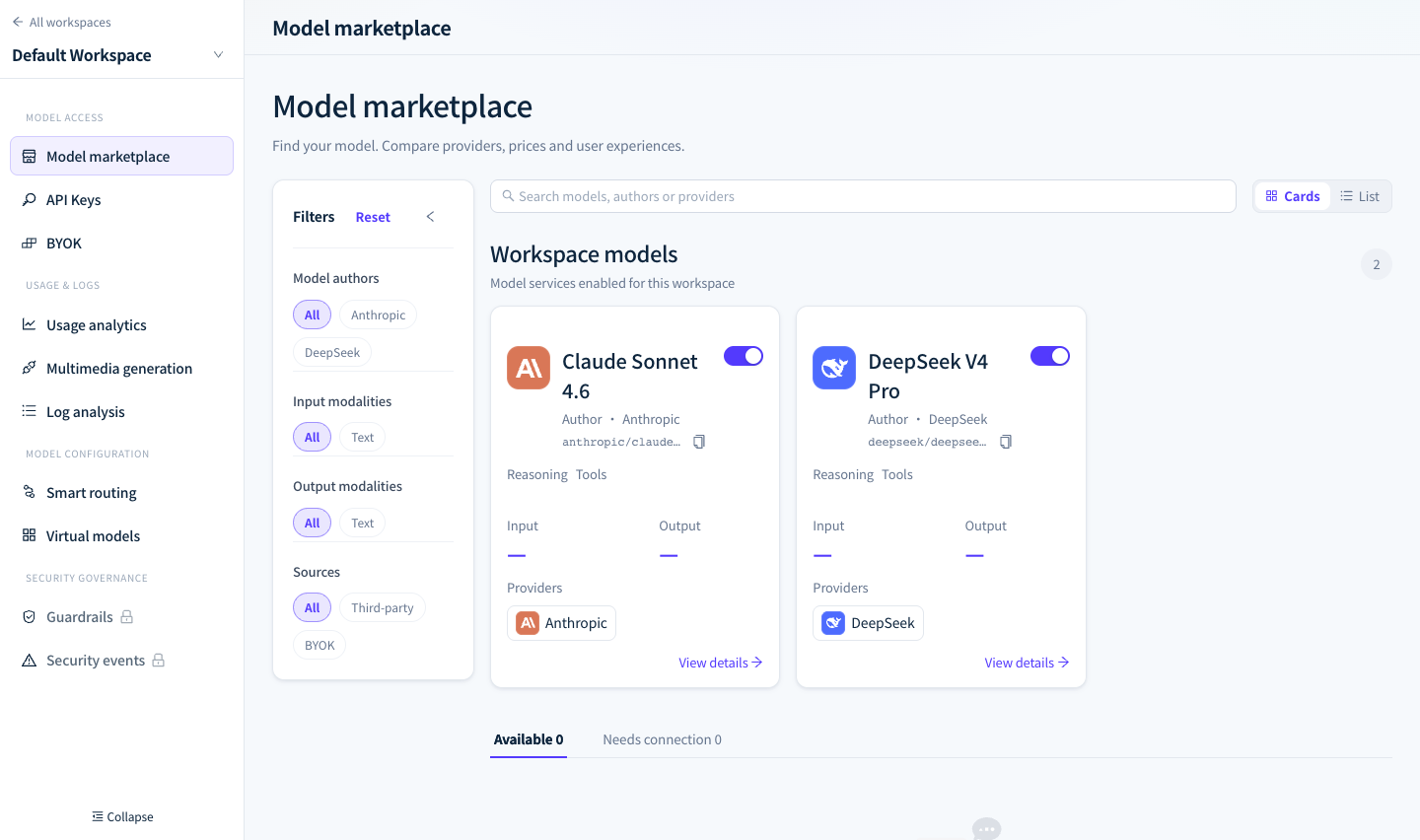
Figure 3: Select an available model and copy its system identifier. This screenshot uses demonstration data; available models depend on your workspace. Click the image to view the original.
Prepare your environment
Choose your operating system and install the tools for your preferred calling method. cURL calls only need cURL; Python and Node.js calls also need their runtime and SDK. Check existing tools before installing them again.
Run these commands in PowerShell on Windows 10 / 11.
1. Prepare cURL
Windows 10 / 11 normally includes cURL. Check it first:
curl.exe --version
If the command is unavailable, install it with WinGet, then reopen the terminal:
winget install --id cURL.cURL --exact --source winget
Use curl.exe to avoid the curl alias in Windows PowerShell. If WinGet is unavailable, install App Installer, or download cURL and add its extracted bin directory to your user PATH.
2. Install Python and its SDK (for Python calls)
winget install --id Python.Python.3.14 --exact --source winget
Reopen PowerShell after installation. In your example project directory, run:
python --version
python -m venv .venv
.\.venv\Scripts\python.exe -m pip install openai
Save the Python example below as example.py and run .\.venv\Scripts\python.exe example.py. Using the virtual environment's executable directly avoids changes to PowerShell's script execution policy.
3. Install Node.js and its SDK (for Node.js calls)
Install Node.js LTS, which includes npm:
winget install --id OpenJS.NodeJS.LTS --exact --source winget
Reopen PowerShell. In your example project directory, run the following commands; skip initialization if you already have package.json:
node --version
npm.cmd --version
npm.cmd init -y
npm.cmd install openai
Save the Node.js example as example.mjs and run node example.mjs. Using npm.cmd avoids execution policy restrictions on npm.ps1. Without WinGet, use the official Python and Node.js LTS installers instead.
4. Set environment variables for this terminal
$env:LYROUTER_API_KEY="YOUR_LYROUTER_API_KEY"
$env:LYROUTER_BASE_URL="https://api.lyrouter.com"
Run these commands in Bash. System package installation requires sudo; use the commands for your distribution.
1. Install cURL and Python
Ubuntu / Debian:
sudo apt update
sudo apt install -y curl python3 python3-pip python3-venv
Fedora / Rocky Linux:
sudo dnf install -y curl python3 python3-pip
curl --version
python3 --version
For cURL-only calls, install just curl.
2. Install the Python SDK (for Python calls)
Create and activate a virtual environment in your example project directory:
python3 -m venv .venv
source .venv/bin/activate
python -m pip install openai
Save the Python example as example.py and run python example.py in the activated environment.
3. Install Node.js and its SDK (for Node.js calls)
Use nvm to install Node.js LTS rather than an older distribution package. Skip the installer if nvm is already installed:
curl -fsSL https://raw.githubusercontent.com/nvm-sh/nvm/v0.40.8/install.sh | bash
Reopen your terminal, then run:
nvm install --lts
nvm use --lts
node --version
npm --version
In your example project directory, install the SDK; skip initialization if package.json already exists:
npm init -y
npm install openai
Save the Node.js example as example.mjs and run node example.mjs. This installation path targets common glibc distributions. For Alpine and other environments, select an appropriate method on the Node.js download page.
4. Set environment variables for this terminal
export LYROUTER_API_KEY="YOUR_LYROUTER_API_KEY"
export LYROUTER_BASE_URL="https://api.lyrouter.com"
Open Terminal. These commands work in Bash / Zsh.
1. Prepare cURL and Homebrew
macOS includes cURL. Check the installed version:
curl --version
Use Homebrew to install Python and Node.js. If needed, install Homebrew with its official command and follow the installer's Next steps to configure PATH:
/bin/bash -c "$(curl -fsSL https://raw.githubusercontent.com/Homebrew/install/HEAD/install.sh)"
To install a newer cURL separately, run brew install curl. It is keg-only; follow brew info curl to configure PATH and check the version again.
2. Install Python and its SDK (for Python calls)
brew install python
python3 --version
In your example project directory, create and activate a virtual environment:
python3 -m venv .venv
source .venv/bin/activate
python -m pip install openai
Save the Python example as example.py and run python example.py in the activated environment.
3. Install Node.js and its SDK (for Node.js calls)
Install Node.js 24 LTS and add it to the current terminal's PATH:
brew install node@24
export PATH="$(brew --prefix node@24)/bin:$PATH"
node --version
npm --version
In your example project directory, install the SDK; skip initialization if package.json already exists:
npm init -y
npm install openai
Save the Node.js example as example.mjs and run node example.mjs. To use this Node.js version in new terminals, follow brew info node@24 to configure your shell startup file.
4. Set environment variables for this terminal
export LYROUTER_API_KEY="YOUR_LYROUTER_API_KEY"
export LYROUTER_BASE_URL="https://api.lyrouter.com"
Replace YOUR_LYROUTER_API_KEY with your saved key. These examples use LYRouter's public gateway, https://api.lyrouter.com; for a self-hosted deployment, substitute your own gateway URL. These variables apply only to the current terminal and its child processes; set them again in a new terminal. Keep the root URL without a trailing /v1; do not use the console's /ai_gateway/ address.
References: Python virtual environments, Python on Windows, Node.js downloads, Homebrew.
Send a request
Replace MODEL_ID with your workspace's actual system model identifier.
Linux / macOS (Bash / Zsh)
curl "$LYROUTER_BASE_URL/v1/chat/completions" \
  -H "Authorization: Bearer $LYROUTER_API_KEY" \
  -H "Content-Type: application/json" \
  -d '{"model":"MODEL_ID","messages":[{"role":"user","content":"Reply OK"}]}'
Windows (PowerShell)
Pass JSON through standard input to avoid PowerShell quoting differences. Replace MODEL_ID with your system model identifier:
$body = @'
{"model":"MODEL_ID","messages":[{"role":"user","content":"Reply OK"}]}
'@
$body | curl.exe "$env:LYROUTER_BASE_URL/v1/chat/completions" `
  -H "Authorization: Bearer $env:LYROUTER_API_KEY" `
  -H "Content-Type: application/json" `
  --data-binary "@-"
import os
from openai import OpenAI

client = OpenAI(
    api_key=os.environ["LYROUTER_API_KEY"],
    base_url=os.environ["LYROUTER_BASE_URL"] + "/v1",
)
result = client.chat.completions.create(
    model="MODEL_ID",
    messages=[{"role": "user", "content": "Reply OK"}],
)
print(result.choices[0].message.content)
import OpenAI from "openai";
const client = new OpenAI({
  apiKey: process.env.LYROUTER_API_KEY,
  baseURL: process.env.LYROUTER_BASE_URL + "/v1",
});
const result = await client.chat.completions.create({
  model: "MODEL_ID",
  messages: [{ role: "user", content: "Reply OK" }],
});
console.log(result.choices[0].message.content);
Verify
Confirm the response, then inspect request logs for status, model, and Token usage. Continue with a tool guide or the API reference. Existing provider credentials can be connected through BYOK.