Troubleshooting with logs
Every model call that passes through the LYRouter gateway leaves one entry on the workspace's Log analysis page. Find the request by time, API key, model and status code, then open its detail to see which model and provider actually served it, whether a failure came from the gateway or the upstream, the stage latency, tokens and cost. Logs are searchable within a few seconds after a call ends; when you contact support, include the Request ID shown at the top of the log detail.
Find the request
Open Log analysis in the workspace's left menu. The list shows calls of the current workspace only. The current Account Owner and workspace Admins see logs from every API key in the workspace; Account Members see only logs from API keys they created, and the list shows "No logs are currently available to you" when there are none. Deleting an API key keeps its logs, and the API Key column marks the name as "Deleted".
- Search box: applies as you type, ignores case, and matches the model, API key name, creator, Request ID, Trace ID and API path at once. It does not match error messages; filter by Status to find failed calls.
- Add filter: Time, Provider, Intent, Stream and Status apply as soon as you pick a value; Model, Client, API Key, Session ID, Request text and Response text apply when you press Enter or click Apply filters. Request text and Response text search prompt and answer text, and only find content stored while content logging was on. Organization accounts can also filter by Creator and Department. All conditions apply together; remove them one by one above the list, or click Clear all.
- Columns: by default the list shows Time, API Key, API Path, Model (request), Provider, Total tokens, Status and Status explanation, plus Creator in organization accounts. Turn on Model (actual), Cost, TTFT, Latency, Session and other columns under Columns.
- Time: Time is when the request finished. For a long-running request, subtract Latency from it to get roughly when the request reached the gateway.
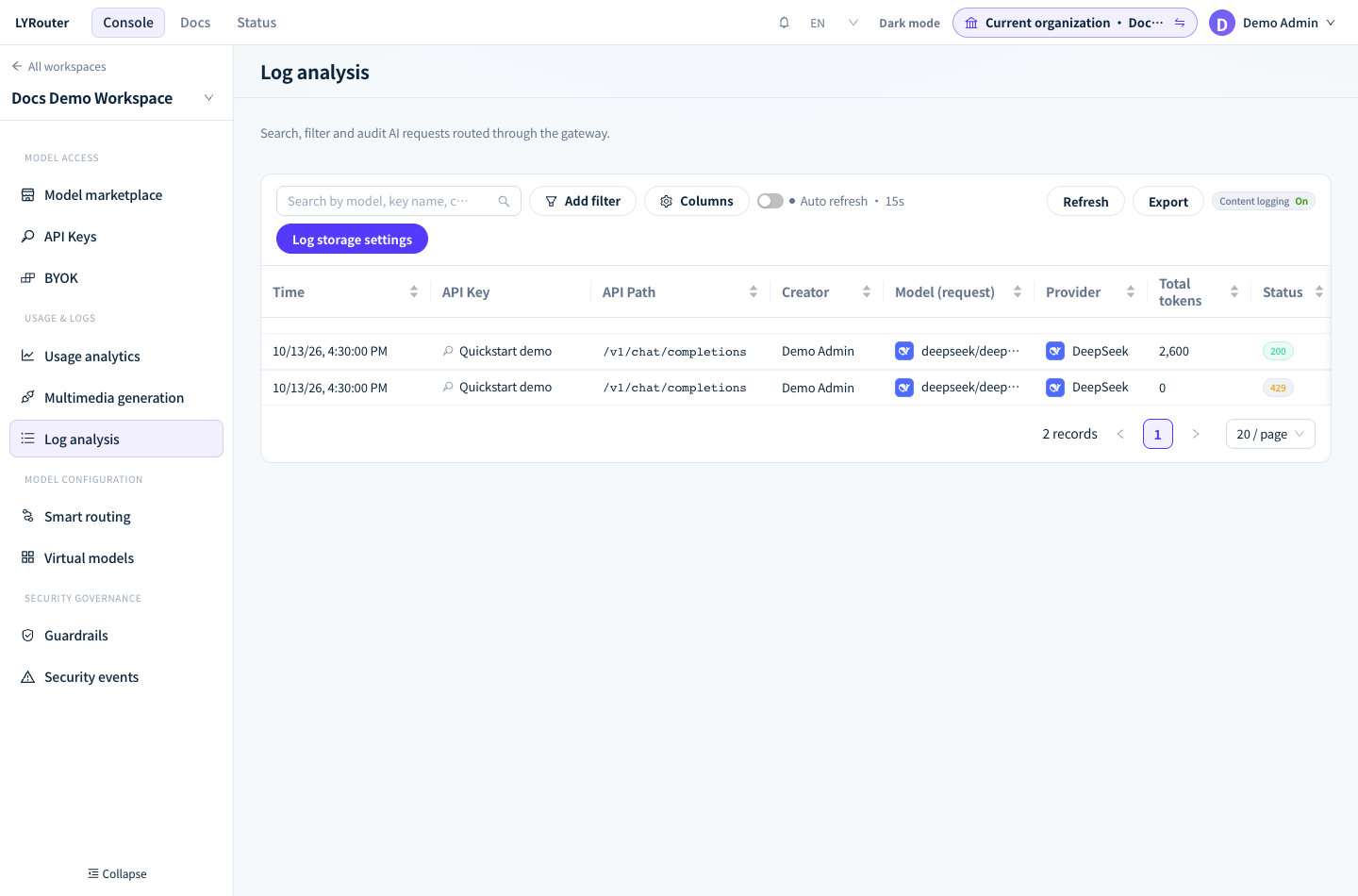
Figure 1: Find a request in Log analysis by time, API key, model and status code. Demonstration data; click the image for full size.
Tell gateway failures from upstream failures
Status in the list is the HTTP status code returned to the client, and Status explanation gives the source and reason. Hover over Status explanation to see the final status, source, reason and upstream status.
| Status explanation | Meaning | Next step |
|---|---|---|
| Gateway + a specific reason, such as "Insufficient balance", "Guardrail blocked the request", "Gateway rate limit rejected the request" or "Model is unavailable" | The gateway rejected the request before calling the upstream | Follow the reason to 401 / 403: authentication and access, 429: rate limits and quotas or Unavailable models |
| Gateway + "Could not connect to upstream; no response received", "Upstream request timed out" or "Upstream request or response read failed" | The gateway called the upstream, but the connection failed, the wait timed out or the read was cut off | See Timeouts and interrupted streams |
| Upstream + Provider returned "…" | The upstream provider returned an error status, which the gateway forwards after trying every candidate | Read the provider's original error under Upstream response in the Raw packets tab |
| Unknown + "Status source was not stored for this historical record" | An older log did not record the source | Use Raw packets to judge |
What the log detail shows
Click a row to open Log detail on the right. The top shows the Request ID and Status, followed by API Path, Time, API Key, Client, Model (request), Model (actual), Provider, Total tokens, Throughput and Cost. Below them are three tabs:
| Tab | Content |
|---|---|
| Overview | Route trace, Security review, Latency breakdown and Token usage |
| Conversation | Request parameters, system prompt, earlier messages (collapsed), tool calls and the answer (reasoning collapsed); failed requests show Error response |
| Raw packets | ① Client request, ② Upstream request, ③ Upstream response and ④ Client response, each with headers and body and a Copy button |
- Route trace: the provider and model that served the call, the BYOK used, every upstream call attempt and why the gateway moved on; see Inspecting request routing.
- Security review: matches recorded on this request for Quota, Model access and Client access, the Risk detection result and the intent classification; see Guardrails and semantic auditing.
- Latency breakdown: split into ① auth, ② routing, ③ key selection and ④ upstream call, with Total as the last row (the console labels the stages in Chinese: ① 鉴权, ② 选路, ③ 选 Key, ④ 上游调用). A stage that was not recorded shows
—. When the upstream call was retried, ④ shows "· N attempts, longest X" and its time is the sum of all attempts. When the stages were not collected, ① to ③ show—and an extra First token (TTFT) row appears; when no stage data can be loaded at all, only Total, Upstream and First token (TTFT) are shown. If ④ takes most of Total, the time was spent at the upstream provider. - Raw packets: credential headers such as
Authorization,x-api-key,api-keyandCookienever appear, and the upstream provider's real address is hidden.
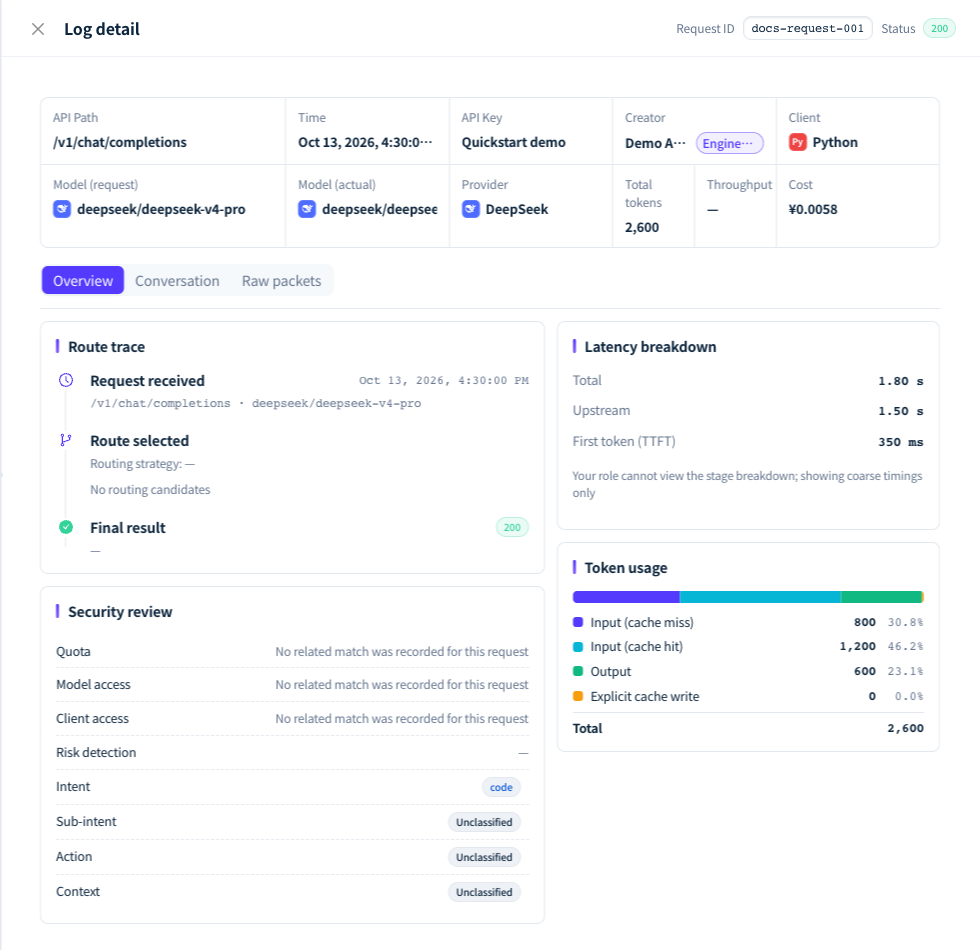
Figure 2: The log detail overview shows the route trace, security review, latency breakdown and token usage. Demonstration data; click the image for full size.
Message content in Conversation and Raw packets is stored only after the workspace turns on content logging; otherwise the detail is marked "Content was not recorded for this log". Failed requests are the exception: even with content logging off, the error the upstream returned and the error the gateway returned to the client are kept for troubleshooting. The switch and what it stores are covered in Logs and data processing; content past the retention period is no longer shown, see Retention, exports and deletion.
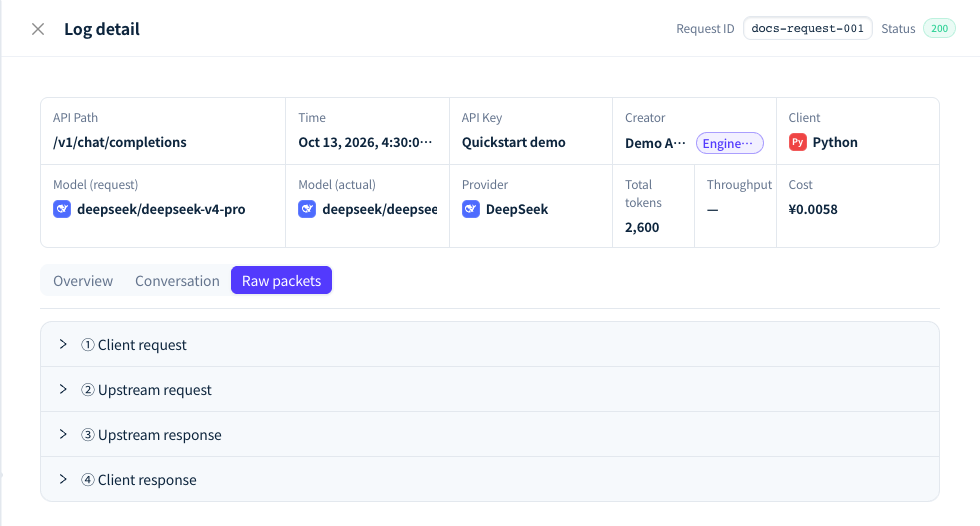
Figure 3: Raw packets show the client request, upstream request, upstream response and client response separately. Demonstration data; click the image for full size.
Reading tokens and cost
Logs split a call's tokens into four types. They never overlap, and together they add up to all tokens of the call:
| Name | Meaning |
|---|---|
| Input (cache miss) | Input tokens that did not hit the upstream prompt cache |
| Input (cache hit) | Input tokens served from the upstream prompt cache |
| Output | Tokens generated by the model |
| Explicit cache write | Tokens explicitly written to the upstream cache with cache_control |
- Token usage in the detail lists the count and share of each type; Total is the sum of all four.
- Total tokens in the list and in the detail is the upstream's reported input plus output. It excludes Explicit cache write, so it can be smaller than Total in Token usage.
- Cost is the Credits actually charged at call time, converted to yuan (¥); it shows "Not calculated" when no charge was recorded. For how many Credits the account was actually charged, the Consumption tab of Subscription & Credits is authoritative. Usage totals by time, model and API key are in Usage attribution and analytics, and billing rules are in Billing and Credits.
What Account Members see compared with administrators
| Capability | Current Account Owner, workspace Admin | Account Member (own API keys only) |
|---|---|---|
| Conversation, raw packets, cost, latency breakdown, session | Yes | Yes |
| Upstream status in Status explanation | Shows Provider returned "…" | Shows "Returned by provider; no more specific reason was recorded"; read the provider's error under Upstream response in Raw packets |
| Route trace | Yes | Not shown |
| Security review | All matches and risk detection detail | Some match categories only |
| Export logs, change content logging | Yes | No; the Export button says "Only workspace Admins or owners can export logs." |
How to create an encrypted export and its limits are in Retention, exports and deletion.
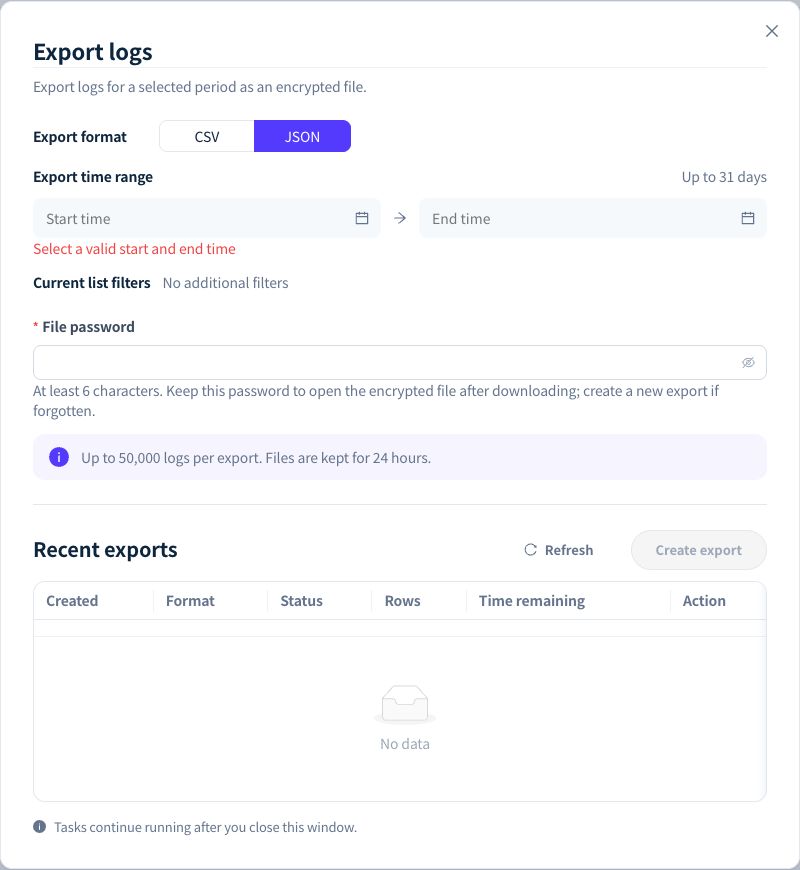
Figure 4: The current Account Owner and workspace Admins can create an encrypted export with the current filters. Demonstration data; click the image for full size.
FAQ
What if a request I just sent is not in the logs?
Answer: Logs are written asynchronously after a call ends. Wait a few seconds and click Refresh, or turn on "Auto refresh · 15s". If it is still missing, check in turn: whether filters remain above the list (click Clear all); whether an Account Member used an API key someone else created; whether the request had no valid API key (401 missing credentials or invalid api key, which cannot be attributed to any workspace); whether the request was GET /v1/models (listing models is not logged); and whether it was rejected by the error-rate circuit breaker (429 api_key_circuit_open) or a permanent ban (403 api_key_permanently_banned), which are not logged either.
The call succeeded, but the log shows a different model or provider?
Answer: Check Model (actual) and Provider. When every channel of the requested model fails, or the model is not enabled in the workspace, the gateway falls back to the workspace's default model; when you call a virtual model or lyrouter/auto, they decide the actual model. Each attempt and the reason for switching channels are in the route trace; see Inspecting request routing and Retries and fallback.
How do I see every request of one conversation?
Answer: Turn on the Session column under Columns. Requests of the same session share a tag color; click a tag to filter by that session. Hover over a tag to see the session ID and its source: "Declared (client x-session-id)" means the client supplied it; "Inferred (gateway-derived)" means the gateway inferred it, and the tag ends with ≈.
How do I read logs of image and video generation tasks?
Answer: The list shows only the request that created the task, with "Async" in the Task type column and "Settling" in Cost until the task is settled. In the detail, switch between "This request" and "Whole task" at the top: "This request" is the HTTP request that submitted the task, which costs nothing itself; "Whole task" shows the task ID, task cost, generation time, poll count and the generated result. See Multimodal capabilities and Asynchronous tasks for the endpoints.
What should I include when reporting a calling problem?
Answer: Gateway responses do not carry a request ID, so first find the request in the logs and copy the Request ID at the top of the detail. Then add the call time (to the minute, with time zone), the endpoint path, the model, the API key's name and the full error message. Never send the API key itself or complete authentication headers.