Teams, members and roles
Team and Enterprise organizations are managed by the current Account Owner, who uses the Organization management page to build departments, recruit members by email invitation or invitation link, and decide which workspaces each member can enter and with which role. An organization has only two roles, the Owner and regular members; each workspace adds its own Viewer, Editor and Admin roles that decide what a member can do there. Membership is capped by the subscription's seat count, and ownership transfer is not available yet.
Personal, Team and Enterprise
| Edition | Requirement | Members |
|---|---|---|
| Personal | Ready after sign-up; no identity verification | Only you; members cannot be invited, and Organization management has only the Overview tab |
| Team | The Owner completes personal identity verification | Members and departments are available |
| Enterprise | The Owner completes personal verification first, then enterprise verification for the company | Same as Team |
- Creating an organization: on the Choose an organization page, or in the Switch organization window in the top bar, click Create organization, choose team or enterprise and enter a name. Until the Owner completes the required verification, the organization shows Verification pending. A Team organization becomes Active automatically once the Owner's personal verification succeeds; an Enterprise organization becomes Active once enterprise verification succeeds.
- Invited members are not verified: verification applies only to the Owner. Members join without personal or enterprise verification.
- Several organizations: one sign-in can belong to several organizations (at most one Personal). Each browser tab chooses its own current organization, and switching to another organization with Switch organization inside the console first requires an SMS code sent to your sign-in phone.
- Feature differences: Team unlocks the quota, model access and client access policies of guardrails; Enterprise adds sensitive data, prompt injection and intent security detection. See Guardrails and semantic auditing.
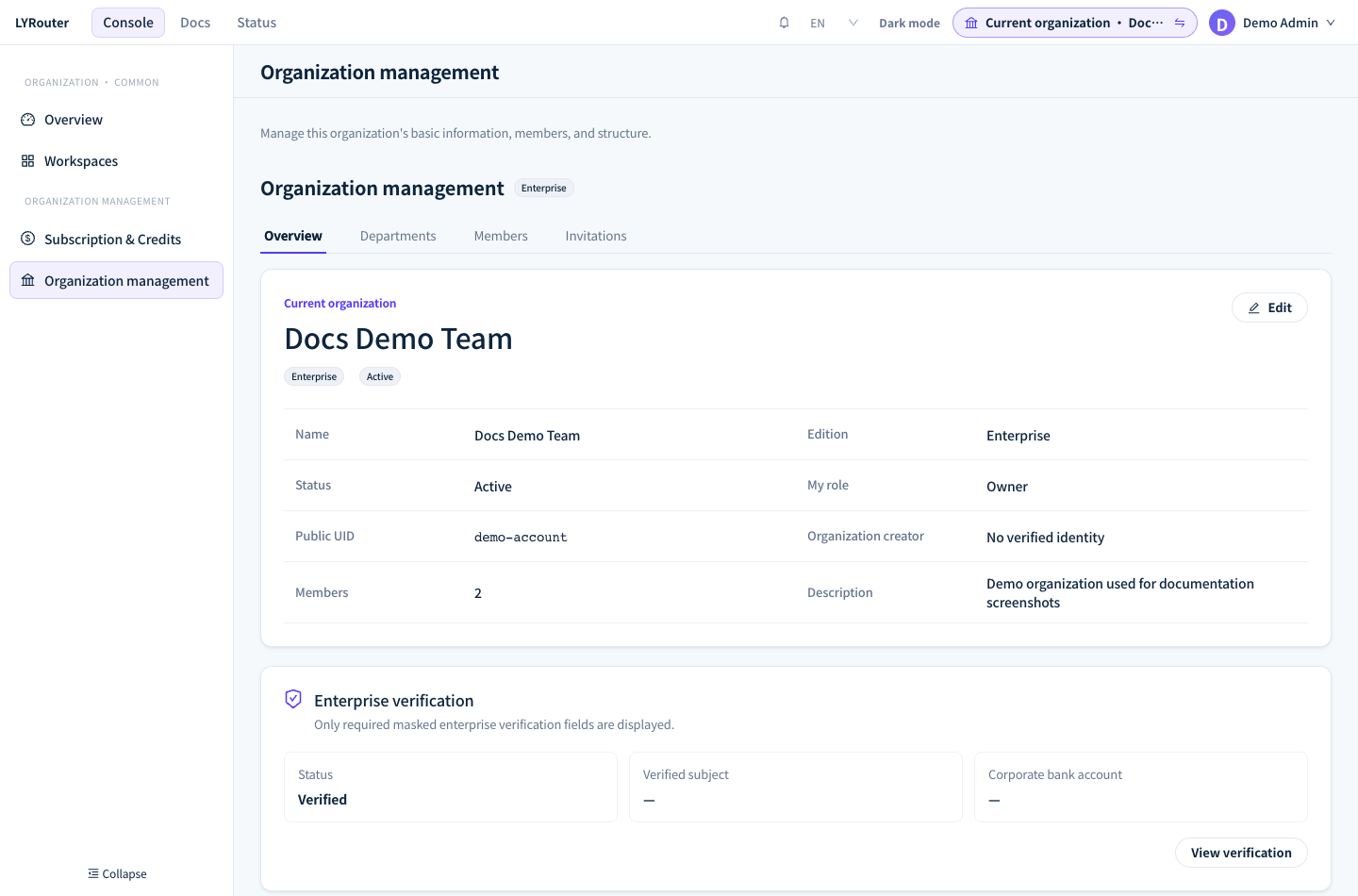
Figure 1: The Overview tab of Organization management shows the name, edition, status, My role and enterprise verification status. Demonstration data; click the image for full size.
Organization roles and workspace roles
The organization role decides which console pages a person can open:
| Organization role | Description |
|---|---|
| Current Account Owner (shown as Owner in the member list) | The person who created the organization; there is exactly one. Manages departments, members, invitations and approvals, is Owner in every workspace of the organization, and is responsible for BYOK, Smart routing, Virtual models, Guardrails and Subscription & Credits |
| Regular member (shown as Member) | Joins through an email invitation or invitation link and can enter only the workspaces they are granted |
The sidebar of a regular member contains only Overview, Workspaces, Model marketplace, API Keys, Usage analytics, Multimedia generation and Log analysis. BYOK, Smart routing, Virtual models, Guardrails, Security events, Subscription & Credits and Organization management are shown only to the Owner; when a regular member opens one of these pages by link, the console shows "Your current organization role cannot access this page" and returns to Overview. A workspace Admin role does not unlock these pages.
The workspace role decides what a member can do inside one workspace:
| Workspace role | What it allows |
|---|---|
| Viewer | View authorized resources in the workspace; cannot create API keys |
| Editor | Create and edit resources, such as creating and editing their own API keys, without member administration |
| Admin | Everything an Editor can do, plus enabling or disabling models in the model marketplace and seeing the calls of every API key in the workspace in Log analysis |
Everyone who joins by invitation or approval is a regular member. Ownership transfer is not available yet, and the member list has no transfer action.
Building departments
The Owner maintains the department tree on the Departments tab of Organization management: click Add top-level to create a top-level department; with a department selected you can use Add sub-department, Edit (rename it or move it under another parent), Delete and Add members.
- Several departments, one primary: a member can belong to several departments but has exactly one primary department. Turn on "Set as the members' primary department" when adding members, or switch it in the Primary column of the department's member list.
- What the primary department does: guardrail policies that target a department match API keys whose creator has that department as primary department; sub-departments are not included.
- Deleting a department: a department that still has sub-departments or members cannot be deleted, and the console shows "This department still has sub-departments or members; clear them first before deleting".
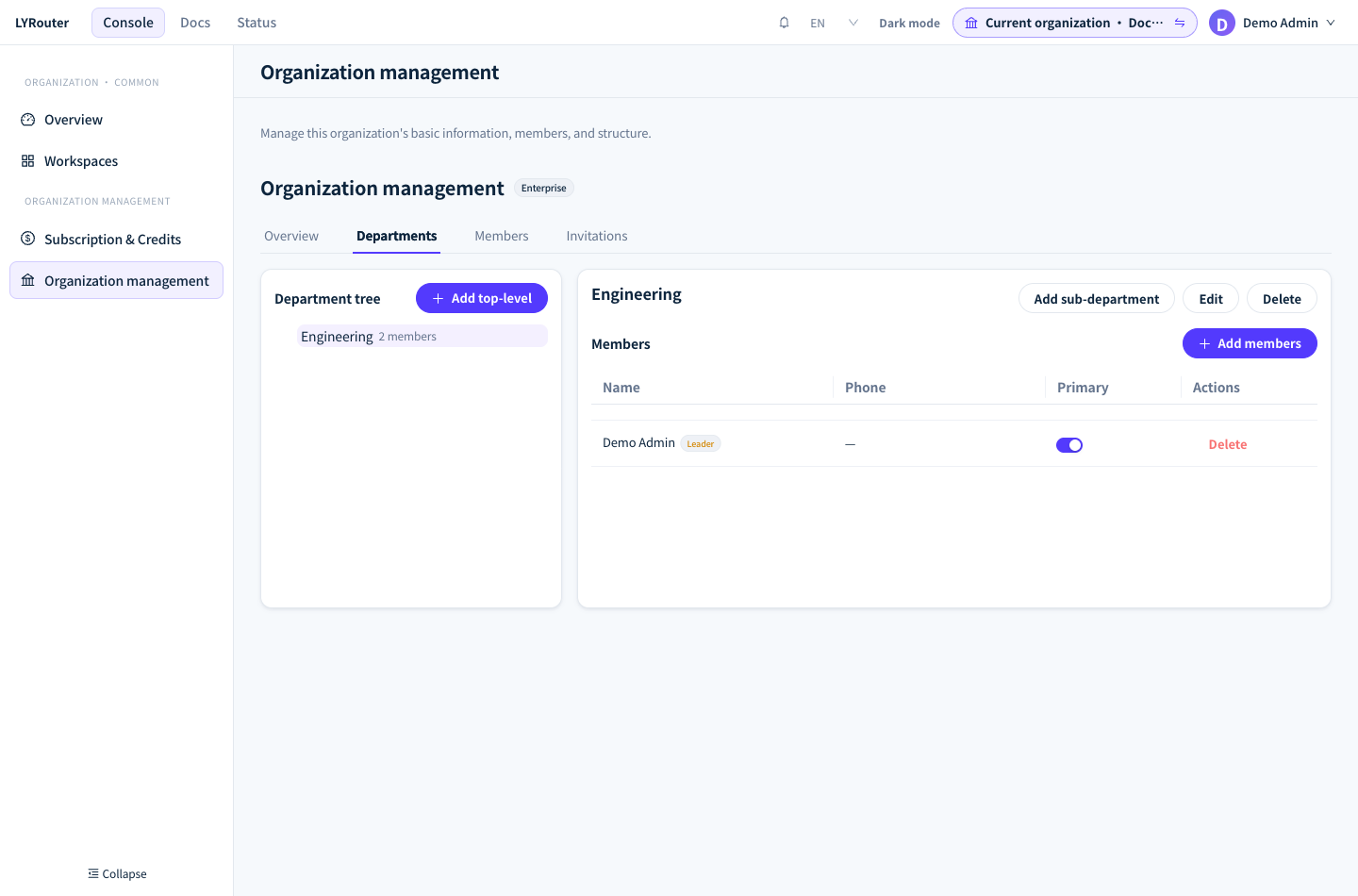
Figure 2: The department page shows the department tree on the left and the selected department's members and primary-department switches on the right. Demonstration data; click the image for full size.
Inviting members
The Invitations tab of Organization management offers two methods:
| Email invite | Invitation link | |
|---|---|---|
| Recipients | One invitation per email address; several addresses at once | One link shared with many people |
| Approval | Not needed; accepting the invitation joins the organization | Needed; the person joins after the Owner clicks Approve in the Approval queue |
| Validity | 7 days | Expires in (days, optional); empty means never. You can also set Max registrations (optional) |
| Department | Default department (optional), joined automatically on acceptance | The link can carry a default department; the Primary department is confirmed at approval |
| Workspace access | Confirmed when sending; direct grants can be Viewer or Editor | Confirmed at approval; direct grants can be Viewer or Editor |
| Seats | Takes a seat as soon as it is sent, until it is accepted, revoked or expires | A request takes no seat until it is approved |
Email invitations
Click Email invite, enter the email addresses (press Enter after each, or paste them separated by commas, spaces or semicolons), choose a Default department (optional) if needed, review the workspaces the person will be able to enter under Workspace access, and click Email invite.
- Mail is sent in the background: "Sent N invitation email(s)" means the invitations were created; the email may arrive a little later. The Email delivery column of the invitation list shows Pending, Sent or Failed, and the console does not show the link inside the email. If the recipient never receives it or the status is Failed, ask them to check their spam folder and the address spelling, then Revoke the invitation in the list and send a new one, or use an invitation link instead.
- How the recipient joins: after opening the link in the email, a signed-in user whose account email matches the invited address clicks Confirm and join; an account without an email verifies its phone number, gets the invited address bound and joins; someone not signed in verifies a phone number first, and existing users join immediately while new users set a password and click Create account and join. If the page says "The current sign-in account email does not match the invited email", sign out and sign in with the account that owns the invited address.
- Sending failures:
a pending invitation already exists for this emailmeans the address already has a pending invitation;invitation email already belongs to an active membermeans the address already belongs to a member.
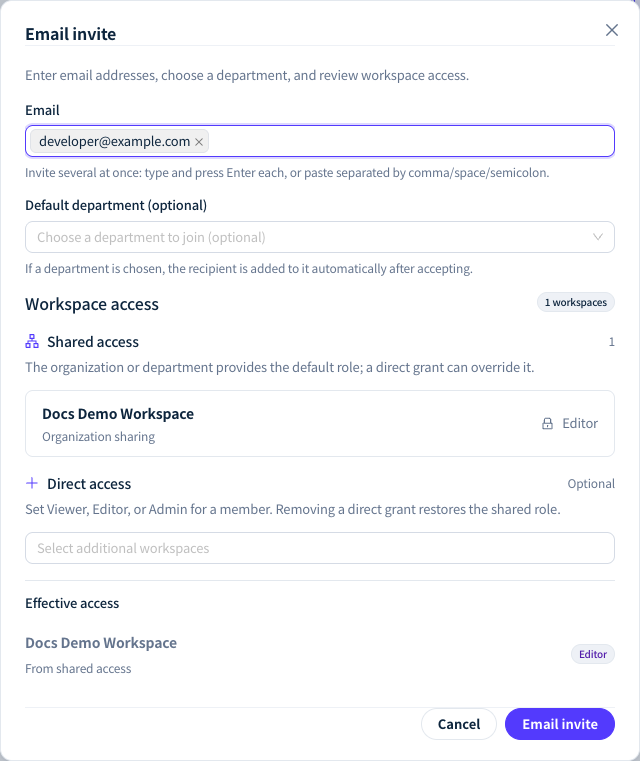
Figure 3: The email invite form takes the addresses and a default department, then shows shared access, direct access and the resulting effective access. Demonstration data; click the image for full size.
Invitation links
In the Invitation links section, click Create link, optionally fill in Default department (optional), Max registrations (optional) and Expires in (days, optional), and click Create. The complete link is shown only once, in the dialog that confirms creation; click Copy link and close to keep it. Afterwards the list shows only "Complete link shown only when created", and a lost link can only be revoked and recreated.
A signed-in applicant who opens the link clicks Apply to join; someone not signed in verifies a phone number first, and a new user sets a password and clicks Create account and apply. The page then shows "Application submitted; awaiting administrator approval"; the applicant is not a member yet. In the Approval queue the Owner clicks Approve, confirms the Primary department and workspace access in the "Approve & assign departments" window and clicks Approve again, or clicks Reject. Once a link is revoked, expires or reaches its maximum registrations, requests still pending under it can no longer be approved; the console shows the Chinese message 「邀请链接无效、已过期或已用尽」 (the link is invalid, expired or used up).
Seat limit
Team and Enterprise membership is capped by the number of seats in the subscription. Seats in use equal the current members (including the Owner) plus Pending email invitations; pending join requests take no seat until approved. When the limit is reached, sending an email invitation or approving a join request fails with this message:
Your subscription has N seats, with M used (including pending invitations). Purchase more seats before inviting members.
It means the subscription has N seats, M of which are in use including pending invitations, and that you need to add seats before inviting more members.
- An organization without an active subscription counts as one seat, which the Owner occupies, so no one can be invited.
- Revoking Pending invitations or removing members you no longer need frees seats; expired invitations no longer take a seat.
- To get more seats, click Add seats on the Subscription & Credits page; see Purchases, bills and invoices.
- When the organization has a subscription, the Approval queue heading shows "2 of 5 seats left", or "All 5 seats are taken — add seats first" when it is full.
Workspace access
A regular member's workspaces come from three kinds of grants:
| Source | Who receives it | Role |
|---|---|---|
| Organization sharing | All active members, when the workspace's Who has access is set to Organization | The workspace's Shared member role: Editor for sharing set up now; sharing set to Viewer earlier stays Viewer |
| Department sharing | Members of the selected departments when Who has access is set to Departments, including sub-departments if "Also include sub-departments of the selected ones" is checked. Membership in any of these departments counts; it need not be the primary one | Same as above |
| Direct grant | Workspaces chosen when inviting or approving, and workspaces added later with Edit on the Members tab | Always Editor when inviting or approving, with no role to choose; Edit offers Editor or Admin, and an existing Viewer stays Viewer |
- Direct grants take precedence: a member with a direct grant gets the role of that grant, even when it is lower than the shared role. Removing the direct grant makes the member follow the workspace's shared role.
- The Owner sets Who has access: Who has access and Shared member role are set when creating or editing a workspace. New workspaces default to Organization and Editor; a Private / Members workspace can be entered only by the Owner and directly granted members.
- Checking effective access: the Workspaces column of the Members tab shows the effective role in each workspace; hover over a workspace to see where the access comes from.
- Owner verification required: editing or removing a member requires the Owner's personal verification. Without it the console shows "The owner must complete personal verification"; click Go to verification to complete it.
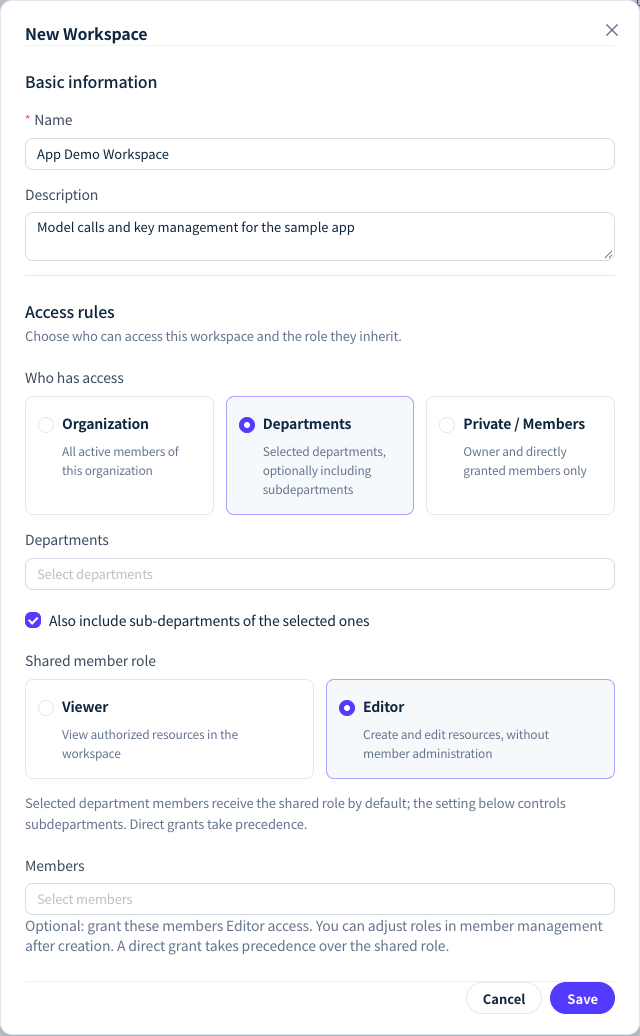
Figure 4: Creating a workspace sets Who has access and the Shared member role; the example shares the workspace with selected departments including sub-departments. Demonstration data; click the image for full size.
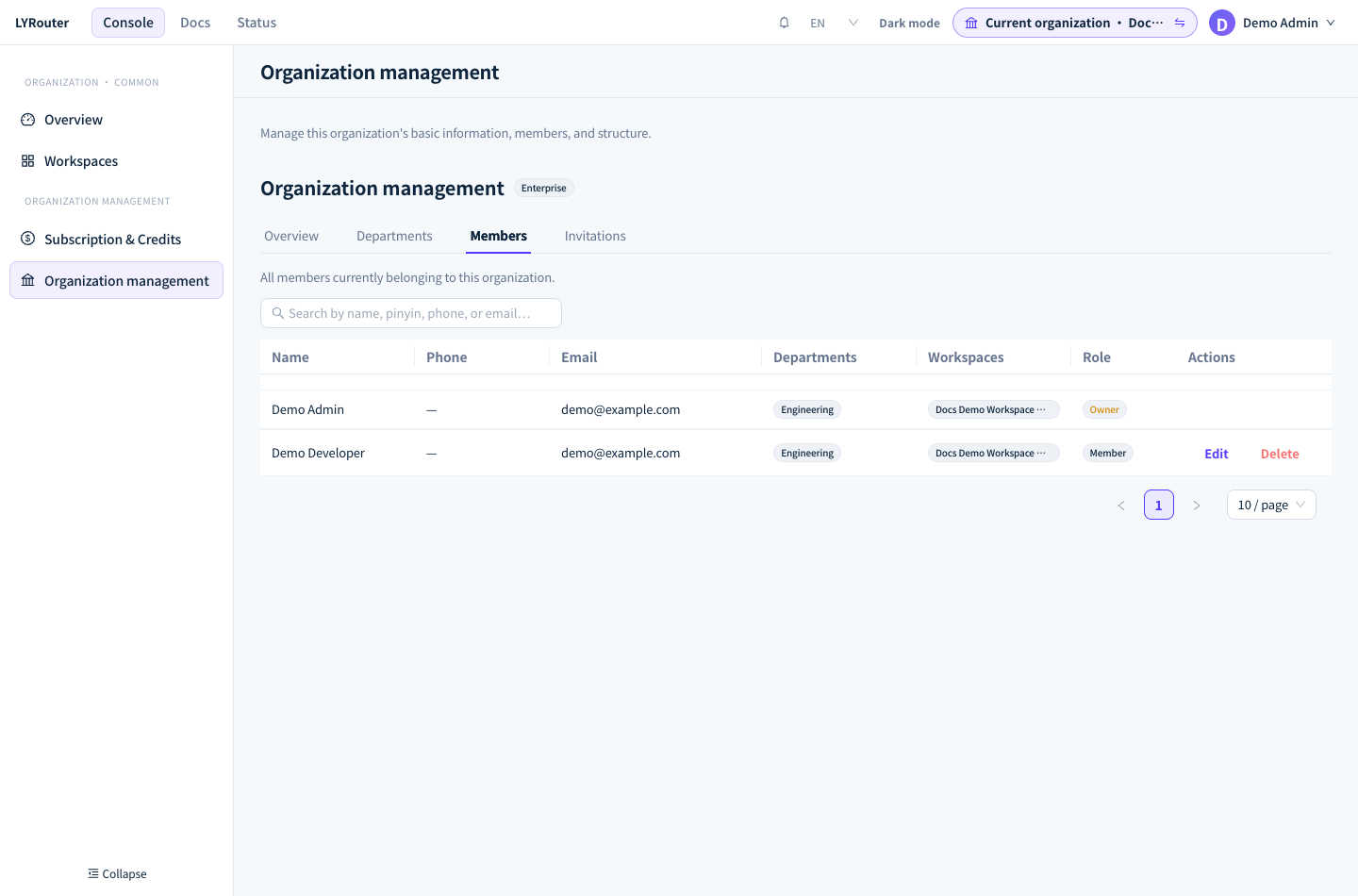
Figure 5: The Members tab shows names, departments, workspaces and organization roles; the Owner's row has no actions. Demonstration data; click the image for full size.
Removing a member
After you click Delete on the Members tab and confirm "Remove this member from the organization?":
- The member immediately loses access to every workspace in the organization; department memberships and direct grants are cleared.
- API keys created by the member stop working, and calls return 401
invalid api key. Existing usage and logs are kept, and Usage analytics marks the person as Removed. Applications that must keep calling should switch to a key created by another member. - The Owner cannot be removed; the Owner's row has no actions.
When you remove only the direct grant for one workspace: a member who still has organization or department sharing for it keeps entering the workspace and their keys are unaffected; a member left with no access at all has the API keys they created in that workspace disabled.
FAQ
A member cannot find a workspace under Workspaces. What should be checked?
Answer: The Owner checks the member's Workspaces column on the Members tab. If the workspace is missing, check its Who has access setting: Private / Members requires a direct grant, and Departments requires the member to belong to one of the selected departments (or to a sub-department when sub-departments are included). The Owner can also click Edit and add a direct grant for the member.
Whose key does usage count against?
Answer: Usage and logs are recorded under the creator of the API key, regardless of who is actually using it. For per-person figures, have each member create keys with their own account instead of the Owner creating keys and handing them out; see Usage attribution and analytics.