Model versions and retirement
The model in a request is a model ID (such as deepseek/deepseek-v4-pro), not the name shown in the model marketplace. Changing a model version means switching to another model ID: validate it with real tasks first, then update your application configuration. Keep model names in one place by putting them in a virtual model, so a switch needs only one change. After a model is disabled in the workspace or retired by the platform, calls return 403 Model is not available in the model plaza; if the workspace has a default model, the default model may answer instead.
Model IDs and display names
| Name | Example | Where you see it | Purpose |
|---|---|---|---|
| Model name | DeepSeek V4 Pro | Card titles in the model marketplace, the model detail page header | Display only |
| Model ID | deepseek/deepseek-v4-pro |
Below the card title and in the detail page header (with a copy button); the id returned by GET /v1/models |
Goes into the model of a request |
| Upstream model name | The provider's own model name or endpoint ID | The Models & cost step of a BYOK configuration | Converted by the gateway; clients never fill it in |
- Model IDs are case-sensitive. Copy them from the model marketplace or look them up with
GET /v1/models; do not type them yourself or add a provider prefix. The part before the slash is the model vendor, not the provider. - Entries returned by
GET /v1/modelscarrydisplay_namewhen the model catalog has that information. It is the display name; calls still useid. - Different versions of the same model are told apart by different model IDs; naming and lookup rules are in Model identifiers and discovery.
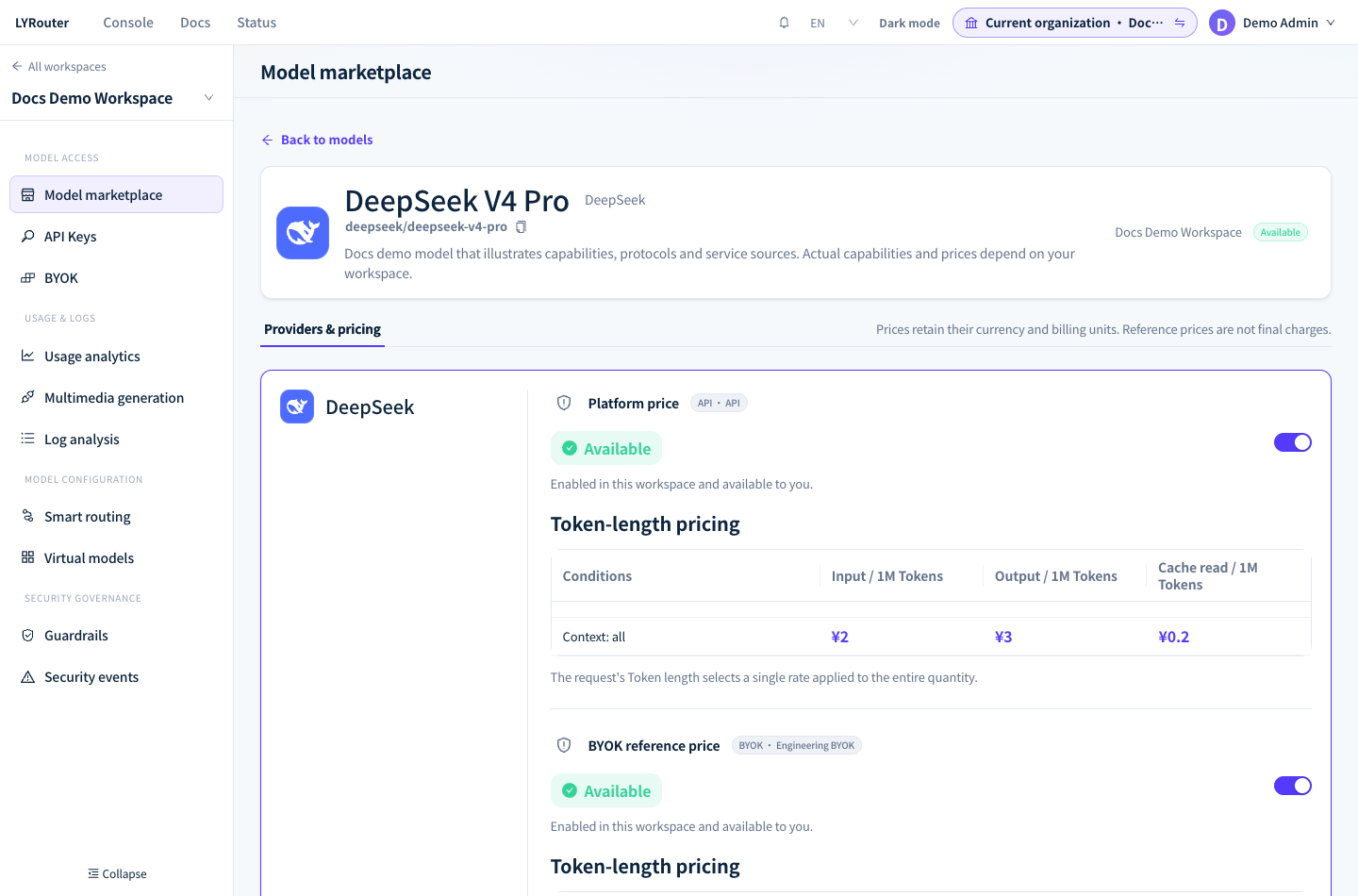
Figure 1: Before changing versions, check the model ID, each provider's status and the price table on the model detail page. Demonstration data; click the image for full size.
Steps to validate a new version
- Confirm it can be called: in the workspace's Model marketplace, confirm that the new version is under Workspace models, and copy its model ID. If it is under Available, ask the current Account Owner or a workspace Admin to enable it. Teams and enterprises should enable and validate it in a test workspace first.
- Check the details: on the model detail page, compare each provider's status, price table and billing unit; use
GET /v1/modelsto check fields such ascontext_length,max_output_tokens,input_modalitiesandapi_types(returned when the model catalog has the information). - Validate with real tasks: use the endpoint your application actually calls (Chat Completions, Anthropic Messages or Responses) and cover long context, image input, tool calls, JSON output and streaming output. Check that streaming output ends normally (
data: [DONE]for Chat Completions,message_stopfor Anthropic Messages,response.completedfor Responses). Differences between endpoints are covered in Capabilities and compatibility. - Compare the results: in the request logs, check Model (actual), Provider, Status, tokens, TTFT and Latency; in Usage analytics, compare request count, success rate and cost by model over the same period.
- Switch and keep a fallback: update the application configuration or the virtual model, and keep the old version as a fallback model for a while; remove it once things are stable.
Use a virtual model to make switching cheaper
Have your application call @vmodel/<name> instead of writing the model ID directly. To change versions later, the current Account Owner only changes Default model on the Virtual models page; after saving, new requests follow the new configuration, and neither the application nor the tool configuration needs to change:
- Put the old version in Fallback models; when the new version fails, the gateway switches to the old one in order.
- Fallback models should support the same endpoints, input types and tool calls as the primary model. When a model does not support the request's input or endpoint, the gateway returns 400 directly and does not try the fallback models.
- Virtual models work with
/v1/chat/completions,/v1/messagesand/v1/responses; for image, video and audio endpoints, write the model ID directly. - In the logs, Virtual model shows the name of the virtual model that was called and Model (actual) shows the model that answered, so you can confirm whether the switch took effect.
How to create and configure one is covered in Virtual models. The Default Model that the workspace sets in Channels and routing is a separate safety net: it answers when a request has no model, or when the requested model fails on every channel or is not enabled. It works as a safety net but not as a way to manage versions, because requests can end up answered by another model without you knowing.
What happens after a model is disabled or retired
| Situation | Call result | Fix |
|---|---|---|
| The workspace disabled every source of the model | 403 Model is not available in the model plaza (error.code is model_not_available); with a default model set, chat requests are answered by the default model instead |
Enable it again in the model marketplace, or switch to another model |
| The platform retired the model | Same as above; the model disappears from the model marketplace and from GET /v1/models |
Switch to the model ID of a replacement model |
| The model is still enabled but has no usable channel or credential | 503 all routed candidates exhausted or No configured credential can serve this model (error.code is no_route_candidate) |
Ask the Owner to check the service sources and BYOK credentials |
| The virtual model's Default model is no longer usable | Its Fallback models are used; if none is usable, the workspace default model is used; if there is none, 503 all routed candidates exhausted is returned |
Ask the Owner to change the virtual model's configuration |
- If a retired model is configured in BYOK, the Owner sees it tagged Unpublished in the Models & cost step of the BYOK configuration.
- When the default model answers, no error is returned; confirm it in Model (actual) in the logs.
- Full handling of each error is in Unavailable models. Platform announcements are sent to the Message center.
FAQ
What should I check first when a model suddenly stops working?
Answer: Match the error message against the table above first. When you get 403 Model is not available in the model plaza, confirm in the model marketplace that the model is still under Workspace models; if it is not, the workspace may have disabled it or the platform may have retired it. GET /v1/models shows which models the current key can still call.
Why did the answer style change suddenly even though the call returned no error?
Answer: Open the request in the logs and check Model (actual). If it differs from the requested model, the original model was unavailable, and the request was answered by the virtual model's fallback model or the workspace default model; if you do not want that safety net, ask the Owner to clear the default model in Smart routing. If the model is the same but Provider differs, the request landed on another channel of the same model; see Connecting multiple providers.
Can I just swap the model ID for any new model before the old one is retired?
Answer: First follow the validation steps above to confirm that the new model supports the endpoints, input types, tool calls and output formats your application uses, then update the configuration. Swapping only by a similar-sounding name may fail on tool calls or JSON output.