Budget attribution and auditing
LYRouter attributes usage by API key: every call is recorded under the key's workspace, the key's creator and the creator's primary department. To make costs land on a specific person or application, have each member and each application use a key they created themselves. For reconciliation, cross-check three sources: Log analysis, Usage analytics and Consumption. Viewing and exporting content for audit materials is controlled by role; redact the materials before providing them externally.
Who a call is recorded under
| Dimension | How it is determined | Notes |
|---|---|---|
| Workspace | The workspace the API key belongs to | A key belongs to only one workspace |
| API key | The key that made the call | After a key is deleted, its historical logs and consumption records are kept and marked Deleted |
| Creator | The key's creator | Not the person who actually made the call. When several people share one key, logs and Consumption show only the creator |
| Department | The creator's primary department in this organization | Shown as the primary department at the time you view it: after a member's primary department changes, historical records also show the new department; after a member leaves the organization, their last primary department is shown |
- By User and By Department in usage analytics count only keys whose access scope is Only me; older keys shared with members or the whole workspace are listed separately as Shared apps · unattributed and are not counted toward any person or department.
- Do not have the Owner create keys centrally and hand them out to members, or all of that usage is recorded under the Owner. How members create keys is covered in Managing coding tools for a team.
- Department figures depend on the primary department. Ask the current Account Owner to set members' primary departments in Organization management; see Teams, members and roles. When the creator has no primary department, Consumption shows No department.
What each of the three sources shows
| Location | Who can view it | Contents | Amounts |
|---|---|---|---|
| The workspace's Log analysis | The Owner and workspace Admins see all calls; other members see only keys they created | Individual requests: time, API key, creator, department, model, provider, Tokens, status | The Cost column, hidden by default; turn it on under Columns |
| The workspace's Usage analytics | The Owner sees everything, plus By Department and By User; other members see only keys they created | Requests, success rate, Tokens and cost, summarized by time, model, API key and so on | CNY: platform requests at the amount actually charged, BYOK at provider cost |
| Consumption on Subscription & Credits | The current Account Owner only | Settled charges across all workspaces of the organization: request time, API key, workspace, creator, department, model, Credits consumed, Request ID | Credits |
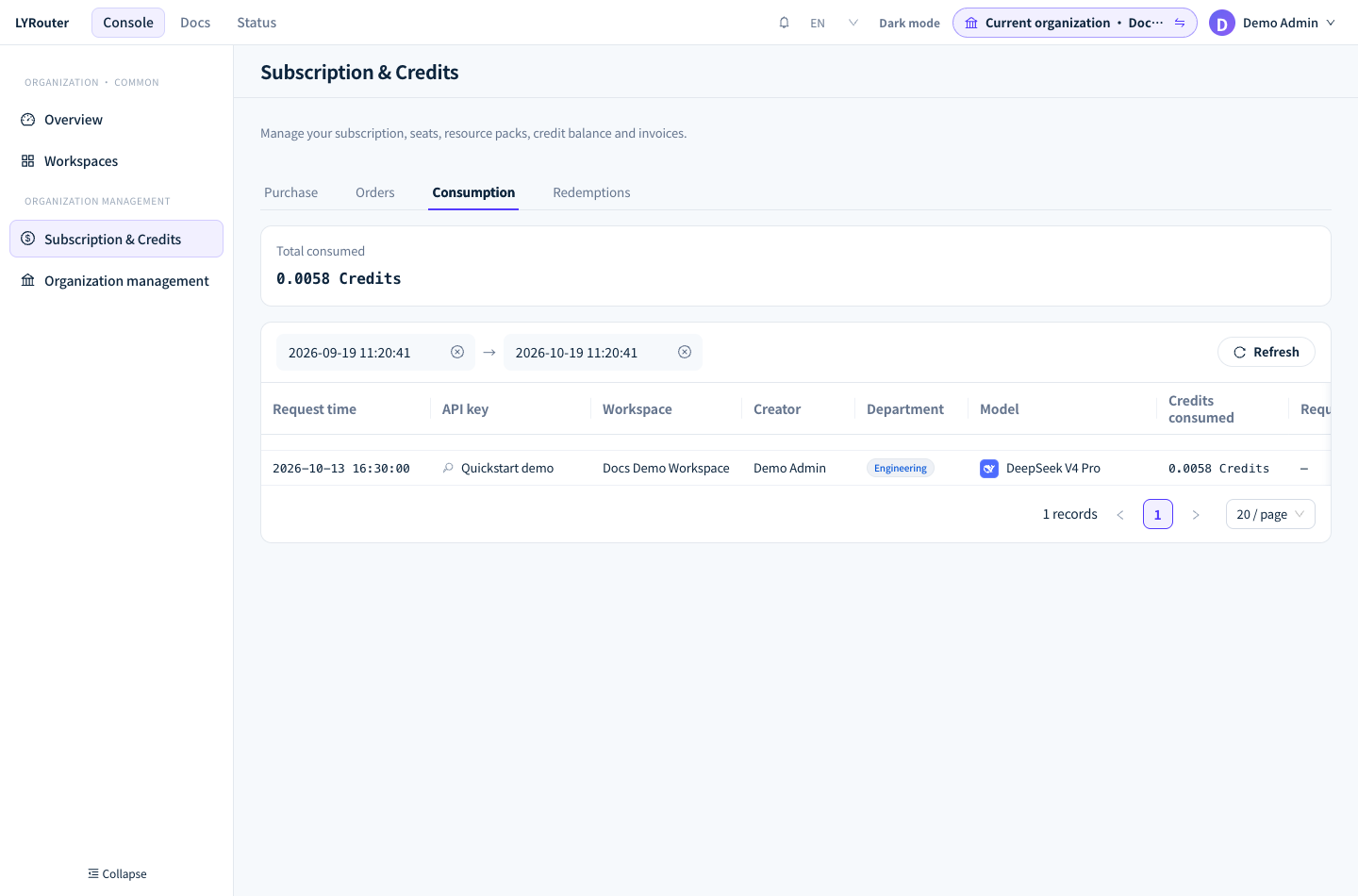
Figure 1: Consumption lists settled Credits request by request, with the API key, workspace, creator, department and model. Demonstration data; click the image for full size.
Reconciling
- Fix the time range: choose the same period in all three places. Consumption queries at most 90 days at a time and shows only the settled part, so calls from the last few minutes may not appear yet. When the page says "Consumption attribution is still syncing, so attributed rows may temporarily differ from the settled total", refresh later and check again.
- Mind the units: Consumption is in Credits and includes only amounts actually deducted from the account's Credits; costs in usage analytics are in CNY and include the cost paid to providers for BYOK calls. The two cannot be subtracted from each other directly; for converting between Credits and CNY, see Billing and Credits.
- Drill down from totals to requests: in usage analytics, find the unusual key or model and note the time period; then in Log analysis, filter by API key, model and time and open the specific requests. For custom dimensions, query in Explorer in usage analytics and click Export CSV.
- Find the log for a charge: the Request ID in Consumption is the Request ID shown at the top of the log details. Copy it, go to the corresponding workspace and paste it into the search box of the logs to find the request.
- Account for failed requests: logs record failed requests, while Consumption includes only requests that were charged. When checking differences, filter failed requests by status code in the logs; see Troubleshooting with logs.
Content and permissions
Log metadata (time, model, Tokens, status and so on) is always recorded. Prompt and answer content is stored only after the workspace turns on content logging: a workspace Admin clicks Log storage settings in the Log analysis toolbar, turns on "Store request and response content", checks all the information-processing notices and saves. This applies only to new requests from then on, and content is redacted according to platform policy before it is stored. For retention periods, see Retention, exports and deletion.
| Role | Logs visible | Content and raw packets | Route trace, security details, export |
|---|---|---|---|
| Current Account Owner, workspace Admin | All keys in the workspace | Yes | Yes |
| Key creator | Keys they created | Yes | No |
Request headers stored in logs have authentication information such as Authorization, x-api-key, api-key and Cookie removed. Members can see the content of their own keys; for sensitive business, have different people create their own keys and turn off content logging where needed; see Logs and data processing.
Exporting audit materials
A workspace Admin or the Owner clicks Export in the Log analysis toolbar and creates a task in the "Export logs" window:
- Export format can be CSV or JSON; the Export time range is at most 31 days, and the list's current filters are reused.
- Set a File password (at least 6 characters). The file is a password-encrypted ZIP holding at most 50,000 entries per export and is kept for 24 hours. The task keeps running after you close the window.
- Downloading requires SMS verification with the bound phone number and confirming that the file contains sensitive data. The export also includes the retained prompts, conversations and model responses.
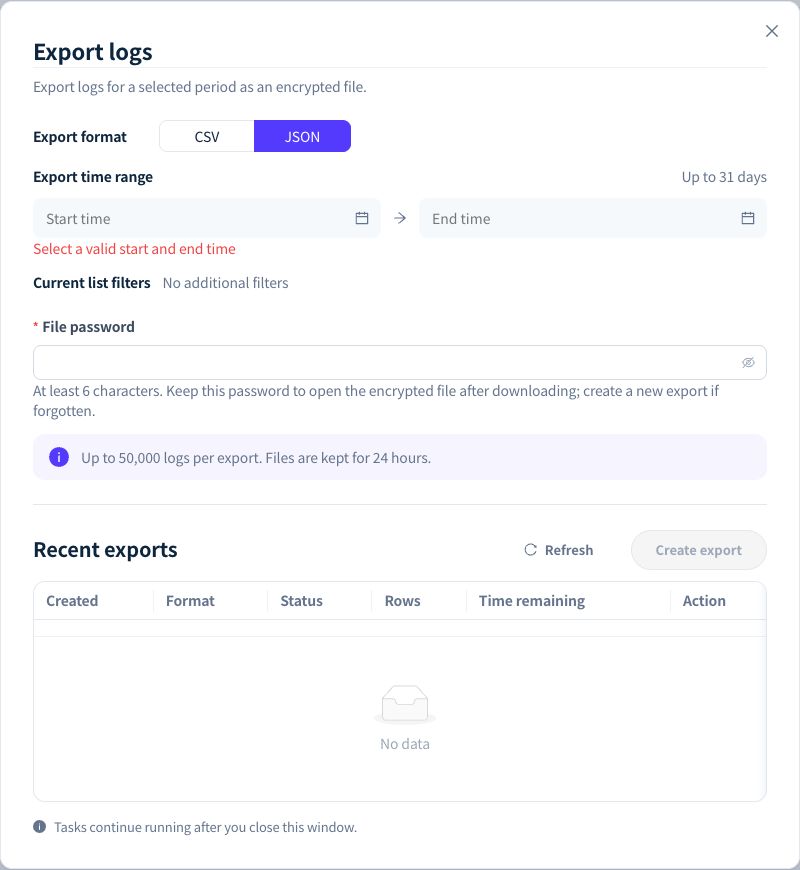
Figure 2: Export logs sets the export format, time range and file password, and lists recent export tasks. Demonstration data; click the image for full size.
When you provide audit materials externally, keep only the necessary fields: identify keys by their name and key prefix, and remove personal information and business data from prompts and answers. Do not include plaintext API keys, BYOK credentials or complete authentication headers. Send the file password separately from the file.
FAQ
Does Creator in the logs prove who made a call?
Answer: Creator only says who created the key. It maps to the actual caller only when each key is used by a single person or application. To audit per person, have each member create keys with their own account, and disable keys that several people share.
After a member changes department, which department do historical costs belong to?
Answer: Departments are shown by the creator's current primary department, so historical records also move to the new department. To keep the department attribution from before the change, query by department in Explorer in usage analytics before making the change, and click Export CSV to keep a record.