Connect a provider
The current Account Owner connects their own provider API keys as a BYOK channel on the workspace's BYOK page. The editor has four steps, Provider & billing, Credentials, Models & cost and Usage, and Test connection checks that every credential can reach the provider before you save. Changes reach the gateway within seconds of saving, and every API key in the workspace can then call the selected models through the channel.
Before you start
- Permissions: only the current Account Owner can see and manage this page. Account Members do not see the menu, but they can call configured BYOK sources with their own API keys.
- What you need: the provider's API key. A custom provider also needs a Base URL and an interface type. Before connecting a Coding Plan, read API services and Coding Plans.
- Limits: within a workspace, each provider channel can have only one BYOK, and providers already connected are greyed out. One BYOK can hold several API keys. A personal account can create up to 3 BYOK channels across all of its workspaces.
Click Add BYOK to open the editor. Click Next after each step; completed steps can be reopened at any time.
Step 1: Provider & billing
| Option | Description |
|---|---|
| Official model providers | Providers the platform recognizes as official model vendors; their endpoints and model lists are maintained by the platform. Providers that are not listed, such as OpenAI and Anthropic, are connected as custom providers |
| Custom provider | Connects an aggregator, an enterprise proxy or any unlisted provider. Fill in Provider name, Interface and Base URL. Custom providers you created earlier stay in the list as cards |
| Billing mode | Token-based or Subscription; see API services and Coding Plans |
| Current access configuration | The Base URL for the selected billing mode. It is read-only for built-in providers and editable for custom providers |
For a custom provider, the Interface determines how to write the Base URL:
| Interface | Example Base URL |
|---|---|
| OpenAI-compatible | https://provider.example/v1 |
| Anthropic native | https://provider.example/v1 (the gateway appends /messages, so include /v1; the editor's placeholder omits /v1, follow this table) |
| OpenAI Responses API | https://provider.example/v1 |
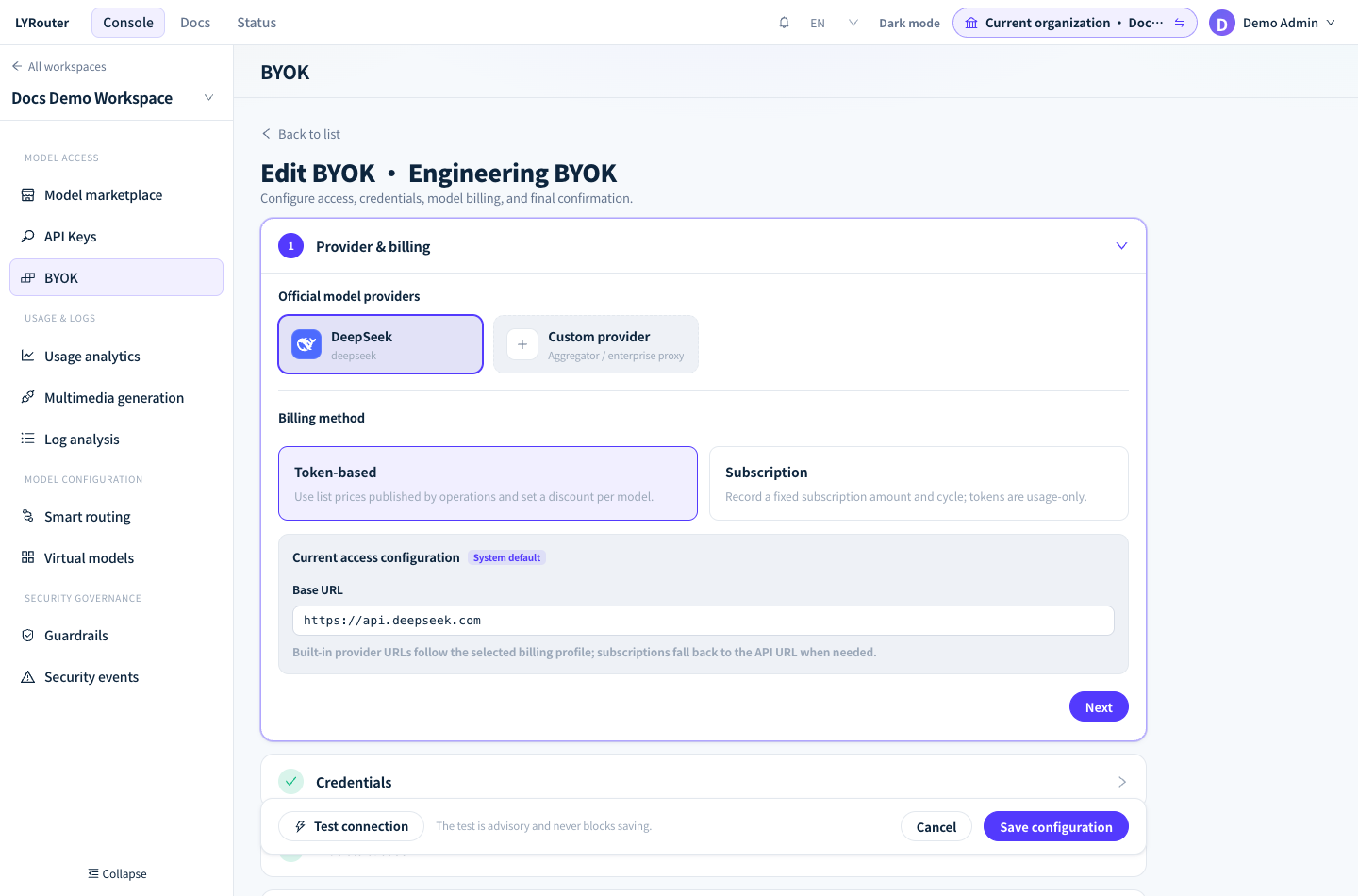
Figure 1: Step 1 selects the provider and billing mode and shows the Base URL of the current access configuration. Demonstration data; click the image for full size.
Step 2: Credentials
Each row is one API key. Click Add a credential from another account below the table to add a row:
| Column | Description |
|---|---|
| Priority | 1, 2, 3…; lower numbers are tried first |
| Enabled | A disabled credential is not used for calls |
| Credential name | A label for recognition, e.g. Primary production credential |
| API Key | The provider key. Saved credentials show Leave blank to keep the current key, and the plaintext is never displayed |
| Connection test | Click Test to test that row only |
| Usage and cost limits | Shown for Token-based billing only; see BYOK fees and credentials |
| Order | Move a row up or down to change its priority; takes effect on save |
- Within one channel the gateway tries credentials by priority and moves to the next when one fails or has reached its limit; see Retries and fallback.
- Most providers limit concurrency per upstream account, so extra keys from the same account do not raise total concurrency. For more concurrency, add keys created under different accounts.
- Newly added credentials are always saved as enabled. To keep one disabled, save first, then edit again and turn off Enabled.
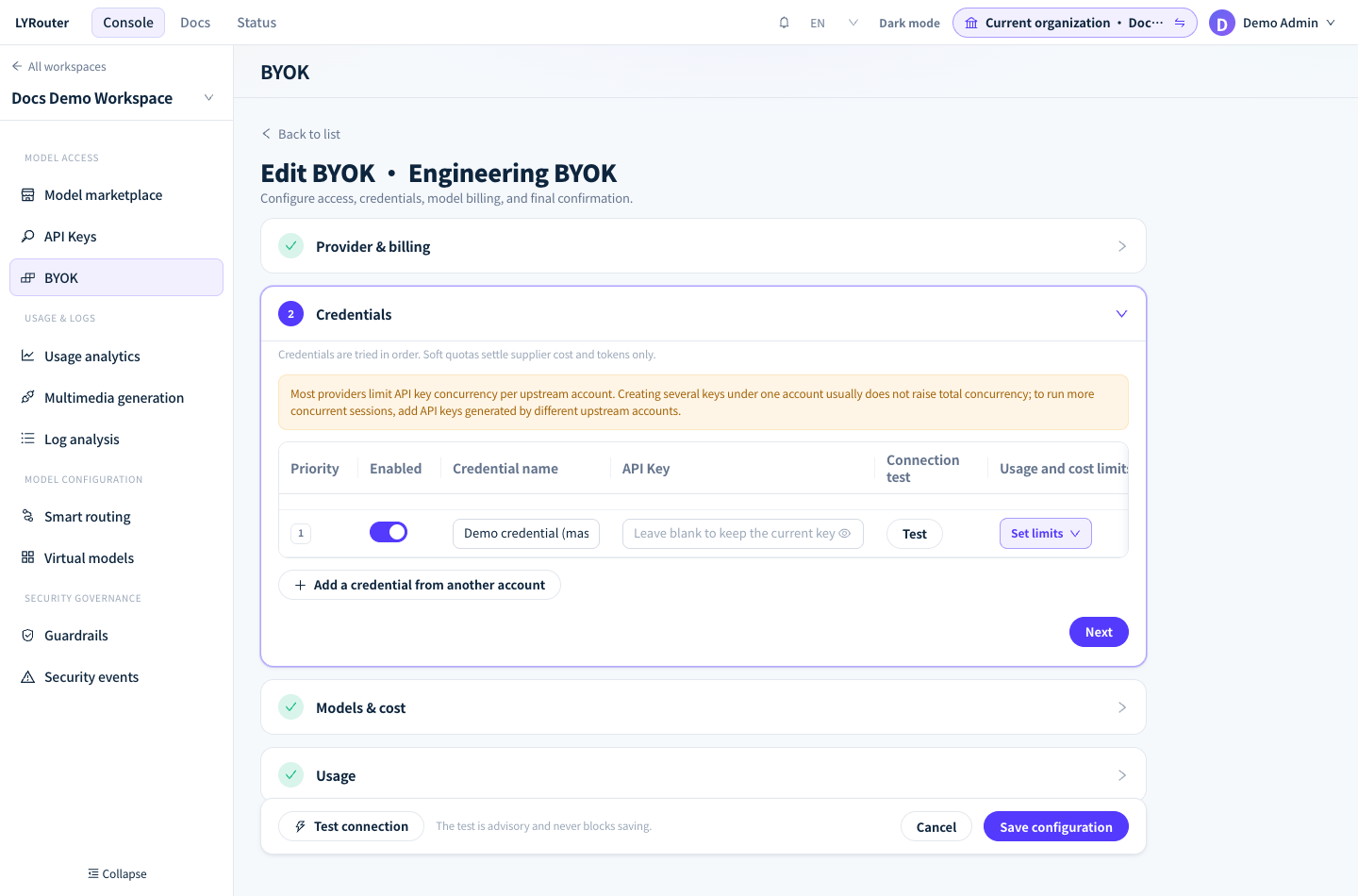
Figure 2: Step 2 manages credentials by priority; leave a saved key blank to keep it unchanged. Demonstration data; click the image for full size.
Step 3: Models & cost
- Built-in providers: the table lists the models the platform has published for the channel, marked Built in; no model mapping required. All models are selected by default for a new BYOK; clear the ones you do not need. With Token-based billing, the table shows input and output list prices and a Channel price discount (%) (100 means list price). Models whose list price shows Pending cannot be saved; clear them.
- Custom providers: click Fetch provider models and map upstream models to platform models; see Model mappings and sources.
- Subscription billing: fill in Subscription amount, Currency, Cycle and Starts at.
The list price multiplied by the discount is this channel's price for Lowest Price sorting and is also used to estimate BYOK costs.
Step 4: Usage
| Switch | Effect |
|---|---|
| Prefer this Channel | The selected models try this channel first; on failure the gateway falls back to other channels and the default model as usual |
| Only use this BYOK | The selected models use only this channel's BYOK credentials, never platform credentials, other channels or the default model, and the request ends when they all fail. When called through a virtual model or lyrouter/auto, the gateway still moves on to the next candidate model after the restricted model fails, but the whole request no longer falls back to the default model. Turning it on also turns on Prefer this Channel and disables that switch; in the model marketplace, the channel's platform source shows BYOK only |
| Request header adaptation | Adjusts the request headers sent to this provider using rules maintained by the platform; turn it on when the upstream has special header requirements |
Both preferences apply per model: in a workspace, only one BYOK can set Prefer or Only use for a given model. They take precedence over the multi-channel routing strategy; see Channels and routing.
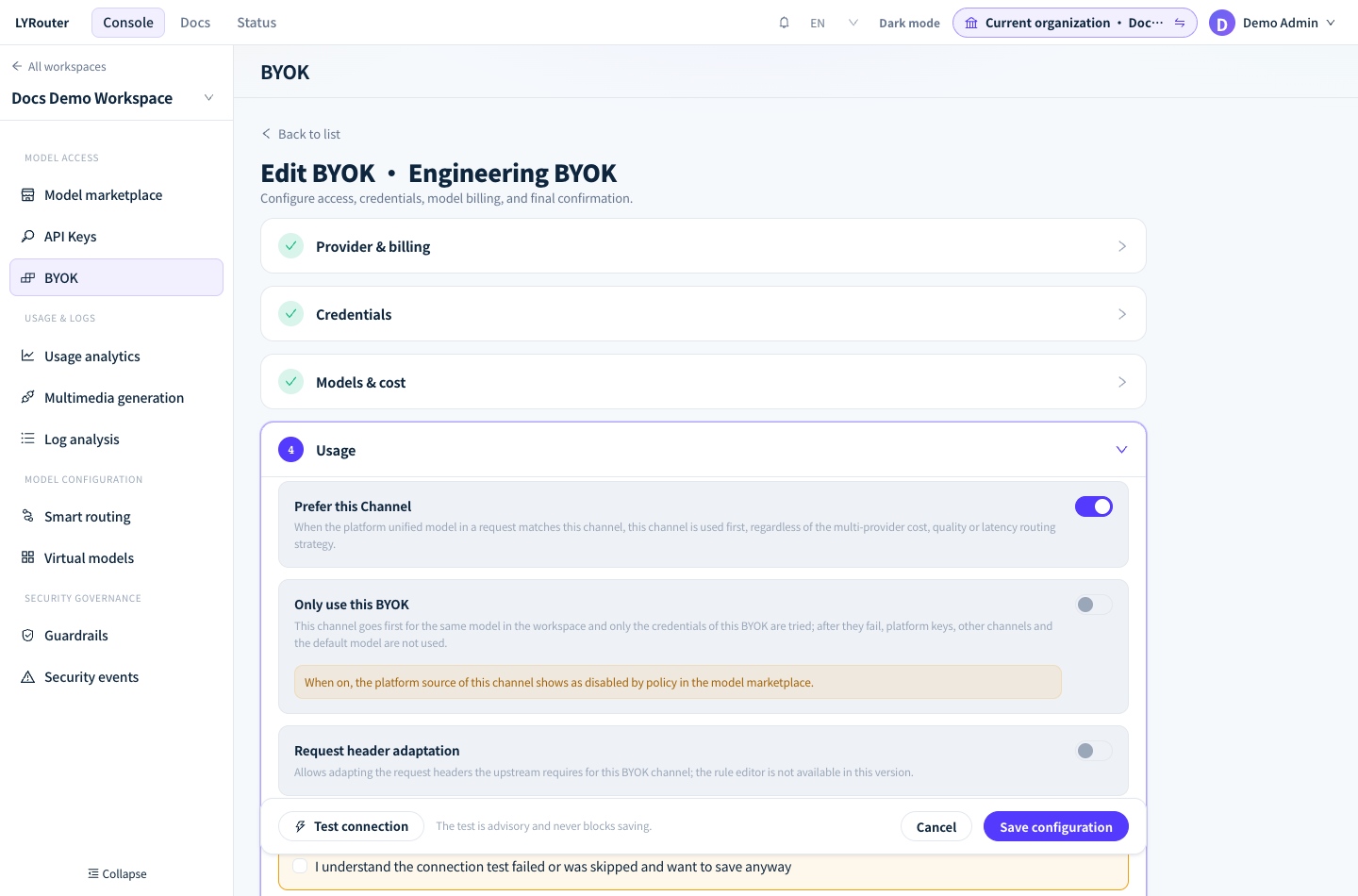
Figure 3: Step 4 distinguishes Prefer this Channel from Only use this BYOK. Demonstration data; click the image for full size.
Test connection
- Test connection at the bottom tests every credential; Test in the Connection test column tests one row.
- The test reads the provider's model list with the credential; built-in providers use the address of the current access configuration. Each row shows Connected · N ms or Authentication failed, and the bottom bar summarizes Done: N/M credentials reachable.
- Authentication failed covers every failure: an invalid key, a wrong address or interface type, a network problem, or a provider without a model list endpoint. Check each in turn.
- The test is advisory and never blocks saving. If any credential is untested or failed, tick I understand the connection test failed or was skipped and want to save anyway in the Usage step. When you edit an existing BYOK, credentials not tested in this session also count as untested.
Save and verify
Click Save configuration. After the message Saved "name"; background health check started…, you return to the list. New credentials are checked once automatically, and the result appears in the Status column. The selected models gain a BYOK source in the model marketplace and are enabled by default.
Call a selected model once with an API key from the workspace; environment variables are set up in Your first model call:
curl "$LYROUTER_BASE_URL/v1/chat/completions" \
  -H "Authorization: Bearer $LYROUTER_API_KEY" \
  -H "Content-Type: application/json" \
  -d '{"model":"deepseek/deepseek-v4-pro","messages":[{"role":"user","content":"ping"}]}'
In the request logs, the call shows a BYOK tag next to Provider, and under Hit upstream in the log details' Route trace, the source is User.
Common save errors
| Message | What to do |
|---|---|
| The following models have no operations list price and cannot be saved: … | Clear the listed models |
| Complete the custom model mappings | Choose a platform model for every selected upstream model |
该 Channel 已绑定 BYOK 凭证组;同一 Provider 的其他 Channel 仍可独立绑定 |
The workspace already has a BYOK for this provider; edit the existing one in the list |
BYOK group limit reached (max 3 for personal tier) |
The personal account has reached its BYOK limit; delete one you no longer use |
channel_policy_conflict |
Another BYOK already sets Prefer or Only use for the same model; turn one of them off |
routing policy requires selected models and an active BYOK credential |
Only use this BYOK needs at least one enabled credential |
model is unavailable for text chat completions |
The mapped platform model is not a text chat model; see Model mappings and sources |
the selected model has no active operations pricing strategy: <model> |
The model has no price usable for Token-based BYOK billing; deselect it or contact support |
Managing an existing BYOK
Each row in the list has edit, enable / disable and delete buttons, in that order. Disabling stops new requests immediately while in-flight requests continue, and you can re-enable it at any time. Deleting requires typing the provider name and clicking Delete permanently; usage and logs already recorded are kept. To replace keys, reorder credentials or set limits, see BYOK fees and credentials.