BYOK fees and credentials
BYOK involves two charges: the provider bills your account for upstream usage, and LYRouter deducts a fixed service fee from your Credits balance for each successful BYOK call; the amount actually deducted appears in Consumption. The BYOK list tracks estimated provider cost and token usage per credential, and replacing, enabling or disabling, reordering and limiting credentials all happen in the Credentials step of the BYOK editor.
Cost breakdown
| Charge | Charged by | Where to see it |
|---|---|---|
| Upstream token cost (Token-based) | The provider | The provider's bill; LYRouter's estimate is in the BYOK list and in BYOK token cost in usage analytics |
| Coding Plan subscription fee (Subscription) | The provider | BYOK subscription cost in usage analytics, converted from the amount entered in BYOK |
| Platform service fee | LYRouter, deducted from your Credits balance | Consumption in Subscription & Credits |
Platform service fee
- When it is charged: when a request is finally completed by a BYOK credential. Failed BYOK calls are free; when BYOK fails and a platform credential completes the request, the platform price is charged and no service fee is.
- Scope: it applies to both Token-based and Subscription billing, and to built-in and custom providers alike.
- Balance requirement: before sending the first BYOK request, the gateway reserves this service fee from your balance. If the balance cannot cover it, the gateway returns 402
insufficient credit balance(error.codeinsufficient_credit_balance); the request is not sent to the provider and does not switch to a platform source. If the account has never been topped up,error.codeisbalance_missing. Top up on the Subscription & Credits page to recover. - Expired subscription: once the account's subscription has expired and the grace period has passed, every call, BYOK included, returns 402
subscription expired; renew to continue; see Unavailable models.
Usage and cost in the BYOK list
| Where | What it shows |
|---|---|
| Cumulative cost and Cumulative tokens cards | Cumulative totals for all BYOK credentials |
| Provider channel row | Total cost and Total tokens are the sums over all of the channel's credentials; Monthly cost and Monthly tokens show "—", and the note "Monthly statistics pending" appears next to the cards |
| Credential row | Monthly cost, Total cost, Monthly tokens and Total tokens show "used / limit" with a percentage, or "Unlimited" when no limit is set |
- How cost is calculated: provider cost is estimated from the list price × discount set in Models & cost and the four token types Input (cache miss), Input (cache hit), Output and Explicit cache write. It excludes the platform service fee and subscription fees. The token count is the sum of the four types.
- "Statistics pending": the credential has no calls to count yet, or the cost of some of its calls cannot be calculated, for example for a Subscription credential.
- "Some data failed to load": credential statistics could not be read for some channels, so the totals show "—"; expand the channel and click Retry.
- When data refreshes: data is read when you open or refresh the page and is not real-time.
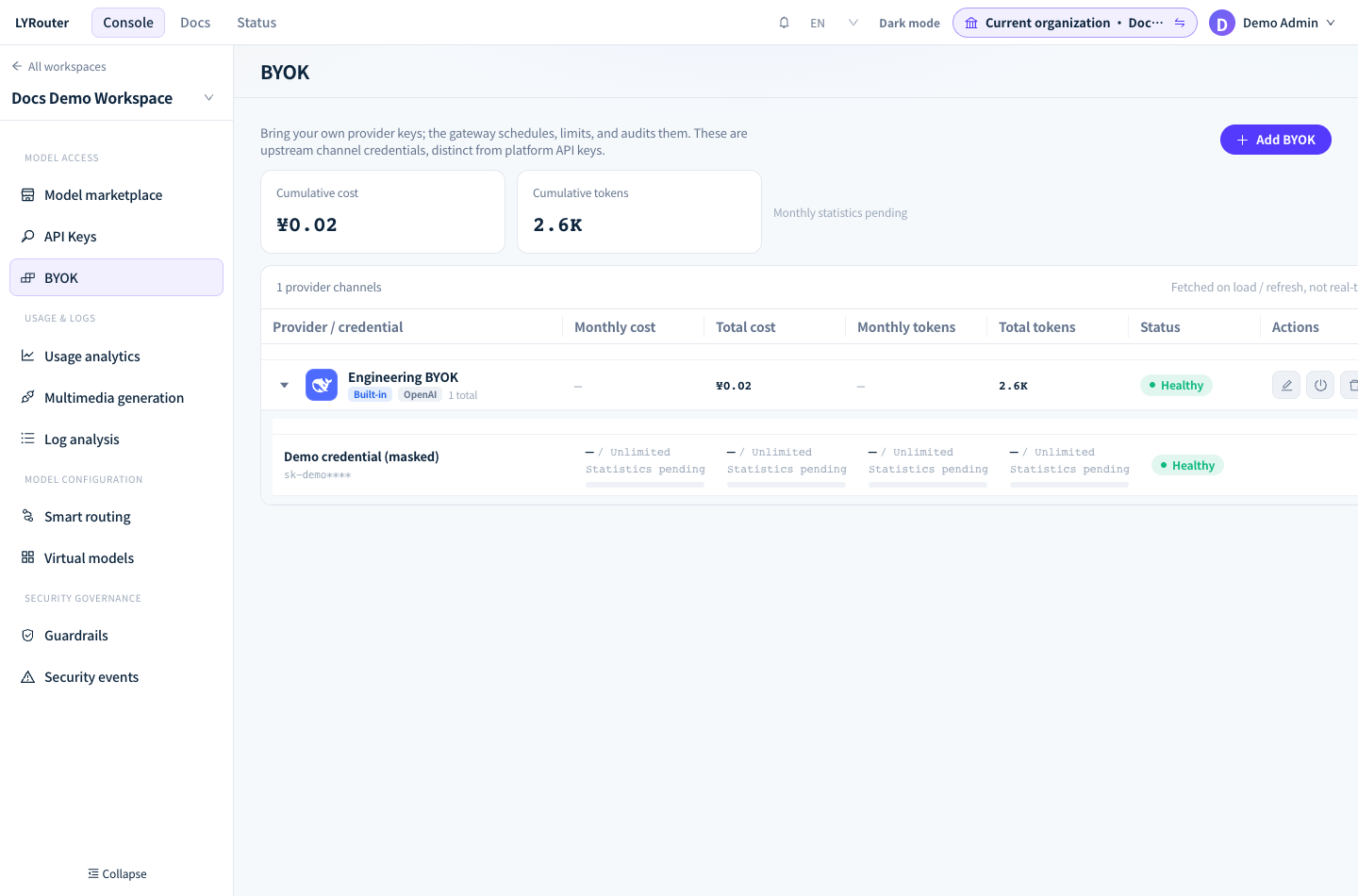
Figure 1: The BYOK list shows cost, token usage and status by provider channel and credential. Demonstration data; click the image for full size.
Managing credentials
Click the edit button in the list to open the Credentials step:
| Action | How |
|---|---|
| Replace a key | Enter the new key in API Key. Leaving it blank keeps the current key (the field shows "Leave blank to keep the current key"). Saved keys show only a masked prefix such as sk-demo****, and the plaintext cannot be viewed |
| Disable / enable | Toggle Enabled. Newly added credentials are always saved as enabled; to disable one, save first, then edit again and turn it off |
| Reorder | Move rows up or down in the Order column; lower numbers are tried first |
| Add a credential | Click Add a credential from another account |
| Delete a credential | Click the delete button at the end of the row; at least one credential must remain. To pause the whole channel, click the disable button in the list |
All changes take effect after you click Save configuration and reach the gateway within seconds. After replacing a key, use Test or Test connection to confirm that the new key works. For troubleshooting, the credential name and masked prefix are enough; you never need to share the full key.
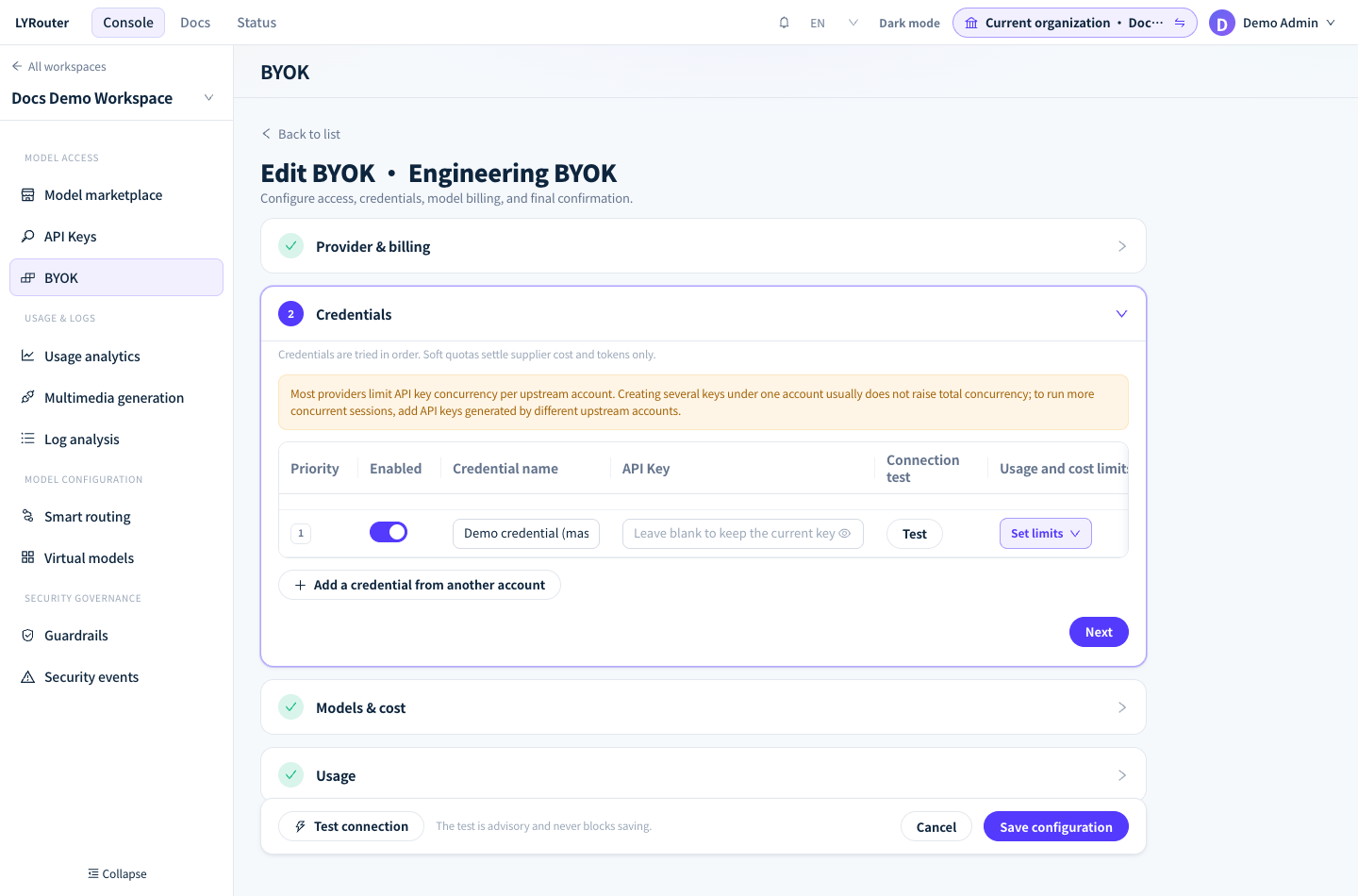
Figure 2: Replace, disable and reorder credentials in Credentials; leave an existing key blank to keep it unchanged. Demonstration data; click the image for full size.
Health status
- A newly added credential is checked once automatically after saving, by reading the provider's model list. Status on a credential row shows Healthy, Checking, Error or Disabled.
- A provider channel row shows Error when every credential fails its check; click it to see the failing credentials, the failure reasons and the Last checked time, and to Re-check or Review config. When only some credentials fail, the row shows Near limit; expand the channel to see each credential's status.
- Status is informational and does not affect routing: a credential showing Error is still tried. Once you confirm that a key is invalid, replace or disable it promptly. After you replace a key, its status in the list does not update automatically; when the channel shows Error, click it and choose Re-check.
Credential limits
Credentials with Token-based billing can have limits: click Set limits in the Usage and cost limits column and fill in Monthly and Total caps under Cost limits (¥) and Token limits (millions). Leave a field blank or enter 0 for no limit.
- When a limit is reached: the credential is skipped during routing, and the gateway goes on to the next credential in the same channel, then platform credentials and other channels. When every usable credential has reached its limit, the gateway returns 429
all upstream credentials for this model are rate limited(error.codeupstream_quota_exhausted); see 429: rate limits and quotas. - How usage is counted: usage is counted after a request completes, so the request that crosses the limit still completes normally. Counting has a short delay, so leave some headroom. Monthly limits reset on the 1st of each month; Total limits never reset.
- Unit of the token limit: Token limits (millions) is entered in millions of tokens:
10means 10 million tokens and1.25means 1.25 million. After saving, check the limit under Monthly tokens on the credential row. - Controlling provider spend: to strictly control what you spend with the provider, also set a quota cap for the account in the provider's console.
FAQ
The cost in the list does not match the provider's bill. Which one is right?
Answer: The provider's bill. The list estimates cost from the list price and discount set in BYOK, and the provider's actual prices, discounts and billing rules may differ. The platform service fee is not included either; check it in Consumption under Subscription & Credits.
BYOK uses my own key, so why do I get 402?
Answer: BYOK calls pay the platform service fee from your Credits balance. Look at error.message: insufficient credit balance means the balance is below the service fee this call needs to reserve, or the account has never been topped up (error.code balance_missing); top up to recover. subscription expired; renew to continue means the account's subscription has expired; renew to recover. See Unavailable models.
I set a token limit and calls soon return 429. What should I do?
Answer: Check whether the limit was saved by an earlier version. Earlier versions stored Token limits (millions) as a raw number of tokens, so a 10 entered then allows only 10 tokens and is reached after the first call. The editor now shows the value in millions, so such a limit appears as a tiny decimal and is not scaled up automatically. Edit the BYOK and enter the limit again in millions under Set limits, for example 10 for 10 million tokens, then save.