Workspaces and API keys
Create an API Key in the correct Account and workspace so that model access and usage attribution share the same scope.
Workspaces
Personal accounts use the default workspace. Team and Enterprise Owners can create spaces; members need an existing grant. Confirm organization, department or direct sharing and roles before distributing credentials.
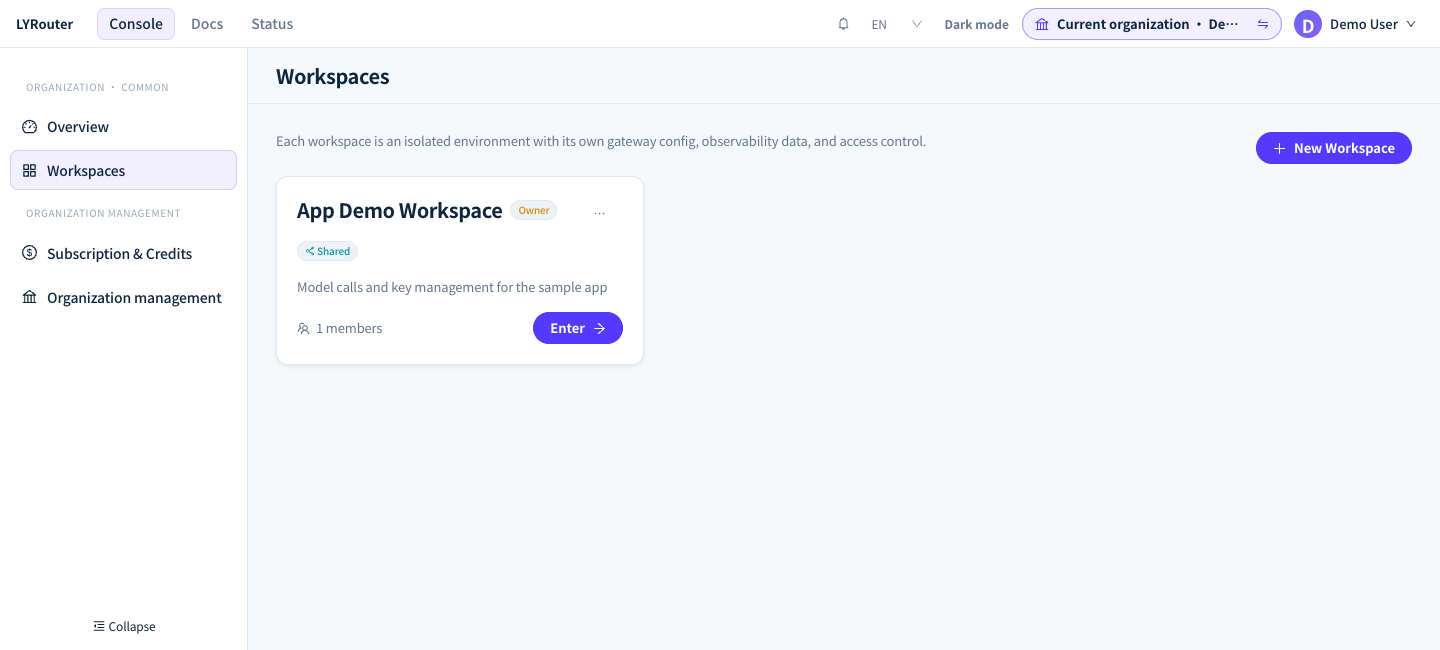
Figure 1: Choose a workspace and select Enter. This screenshot uses a demonstration Team Owner account; personal accounts use their default workspace and have no creation entry. Click the image to view the original.
Team and Enterprise Owners select New workspace, enter its name and description, choose the sharing scope and role, then select Save. Enter the new workspace before creating an API Key.
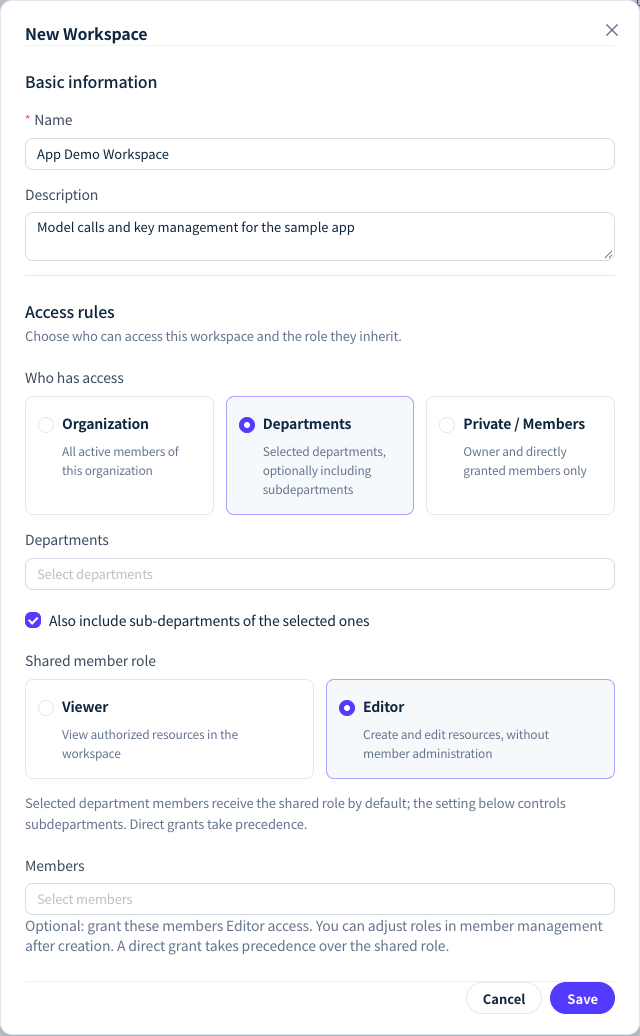
Figure 2: Select Specified departments, choose the visible departments, and optionally include subdepartments or specific members. The name and data are for demonstration; select permissions appropriate for your application. Click the image to view the original.
Create a Key
Open API Keys in the workspace. With creation permission, provide a name, optional expiry and supported budgets. Token budgets use millions of Tokens. Save the one-time plaintext credential before closing the creation dialog.
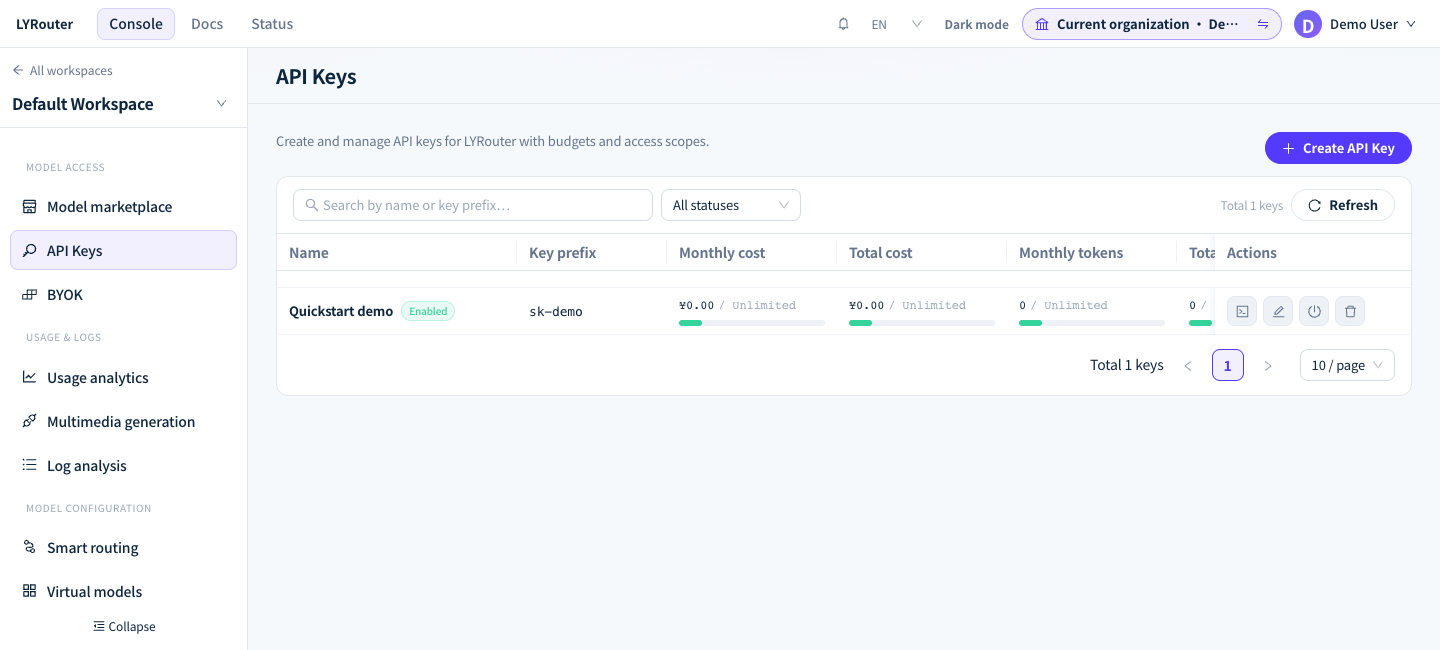
Figure 3: Create and manage keys from your workspace's API Keys page. This screenshot uses demonstration data; the list shows only key prefixes. Click the image to view the original.
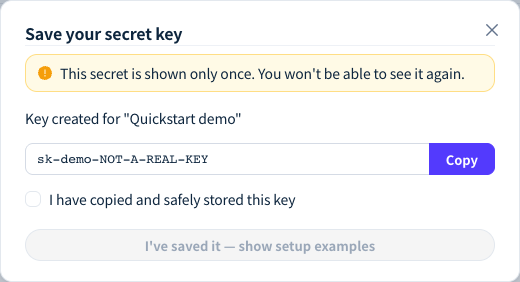
Figure 4: Copy and securely save the full key, then confirm it is saved. sk-demo-NOT-A-REAL-KEY is a demonstration value and cannot authenticate requests. Click the image to view the original.
Model access is controlled by workspace services and lower-level policies, not a second independent model list on the Key.
Manage and rotate
Management actions follow your actual permission. Enabled means usable, not recently used. Create a replacement Key, update the application and validate it before disabling the old Key.
Monthly and cumulative usage are separate; incomplete data is not zero. Shared Keys identify their creator rather than each operator. Run the quick start and check request logs.